Your Book
Adding Text Features
Text features are the special pieces inside a chapter: a scene break, a letter, a poem, a list, a text message conversation, a footnote. Fleuron styles each one to match your book. This article shows how to add them and change them.
Adding a feature
- Click in the text where the feature should go. To turn existing text into a feature (a quote, say), select those paragraphs.
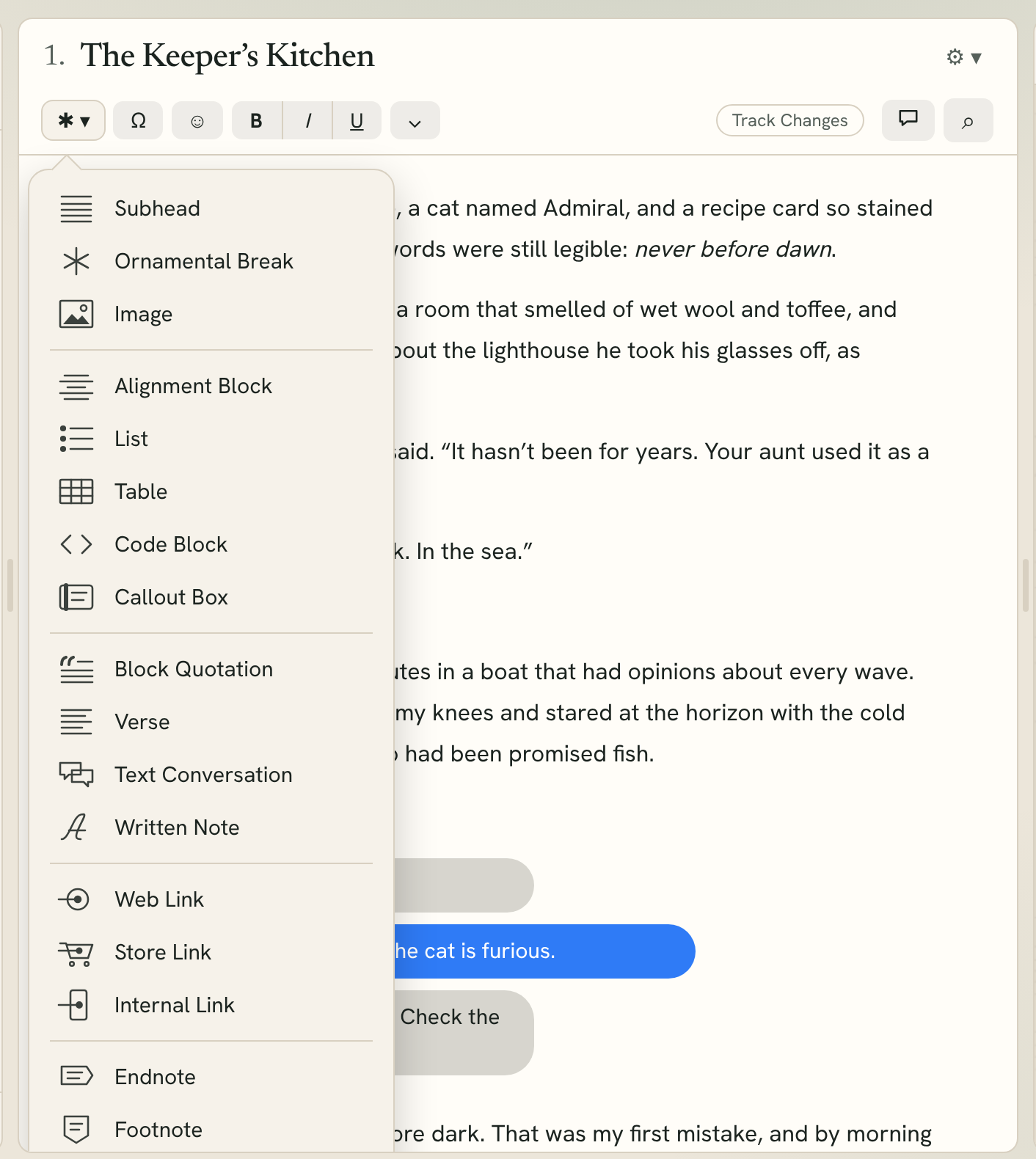
- Click ✱ ▾ on the toolbar, or open the Text menu.
- Choose the feature.
The ✱ ▾ menu has:
- Subhead, Ornamental Break and Image,
- Alignment Block, List, Table, Code Block and Callout Box,
- Block Quotation, Verse, Text Conversation and Written Note,
- Web Link, Store Link and Internal Link,
- Endnote and Footnote.
Page Break, Scene Break and Numbered List are in the ⌄ menu on the toolbar. Everything is also in the Text menu.
Note: Your workspace can hide features you're unlikely to need. The Fiction workspace hides tables, code blocks and callout boxes; the Non-fiction workspace hides text conversations, written notes and verse. The bottom of the ✱ ▾ menu says which workspace you're in, with Change… to switch.
Changing or removing a feature
Click inside a feature and a frame appears around it with a ⚙ ▾ button. Click it to change the feature. The choices depend on the feature, and most have these too:
- Keep Lines on Same Page: don't split the feature across two printed pages.
- Format Next Paragraph As: New Paragraph or Continuation of Previous (no indent, as if the paragraph carried on).
- Include In: show the feature in every edition, only in ebooks, only in print, or only in one store's ebook. See Ebook-Only and Print-Only Content.
- Remove Formatting: turn the feature back into ordinary paragraphs.
- Delete: remove the feature and its text. ⌘Z brings it back.
To get out of a feature and back to ordinary text, press Enter on an empty last line.
Subheads
A subhead is a heading inside a chapter. Select the line and choose Subhead. In the ⚙ ▾ menu, choose Level 1 to Level 5 for headings within headings. Pressing Enter after a subhead starts a normal paragraph.
Scene breaks and page breaks
- Ornamental Break puts your style's ornament between two scenes.
- Scene Break leaves an empty line between scenes.
- Page Break starts a new page. Kobo and Google Play ebooks show it as a scene break instead.
To change or remove a break, click it to select it, then use its ⚙ ▾ menu or press Delete. To choose the ornament, see Applying Styles.
Alignment blocks
An alignment block sets lines apart: centred, or flush left or right. Good for a sign, a short inscription or a date line. In its ⚙ ▾ menu choose Left, Center or Right, Inset to bring in both margins, and Keep With Next Paragraph.
Block quotations and verse
Block Quotation sets a passage apart from the text. Verse does the same for poems and song lyrics, keeping each line as you typed it. You can switch between the two in the ⚙ ▾ menu.
To name who said it, choose Add attribution and type the name. The attribution is the last line; pressing Enter there leaves the quotation.
Lists
Choose List for a bulleted list or Numbered List for a numbered one. In the ⚙ ▾ menu, choose Bullet, Numbered (1, 2, 3), Lettered (a, b, c) or Lettered (A, B, C).
- Press Tab to indent an item to a sublevel, and ⇧Tab to bring it back.
- Press Enter on an empty item to end the list.
- For a numbered list that carries on after a paragraph, choose Continue from Previous.
Tables
Choose Table for a table of three columns and three rows. Type in the first cell, then press Tab to move to the next one; Tab in the last cell adds a row. In the ⚙ ▾ menu you can turn the Header Row on or off, Add Row Above, Add Row Below, Add Column Left, Add Column Right, Delete Row and Delete Column.
Code blocks and callout boxes
A Code Block shows computer code in a fixed-width font, exactly as typed. Press Enter for a new line; press Enter on an empty last line to leave the block.
A Callout Box sets a note apart in a box. In its ⚙ ▾ menu, choose the kind: Note, Tip, Warning or Plain, and Add Title or Remove Title.
Text conversations
A text conversation shows messages as chat bubbles, the way they look on a phone.
- Select the lines of the conversation and choose Text Conversation.
- Click a line. Beside it are three buttons: Received message, Contact name and Sent message. Click the one that fits. The same choices are in the ⚙ ▾ menu under This line.
After a contact name, pressing Enter starts that person's message.
Finding conversations for you. If your manuscript has lines like "Steph: r u serious", choose Edit ▸ Find ▸ Find Text Conversations…. Fleuron lists the conversations it found across the book. Choose who the messages are Sent by (shown on the right), tick the conversations to change, and click Make Chat Bubbles.
Written notes
A written note sets apart a letter, a diary entry or a handwritten note. In its ⚙ ▾ menu:
- under This Line (or Selected Lines), choose Indented, Left, Center, Right or Deep Inset for each line, such as a right-aligned date or a signature,
- under Variant, choose Variant 1, 2 or 3. Each variant has its own look, set in Styles ▸ Written Note.
Web links
- Select the words readers will tap (or just place the cursor).
- Choose Web Link.
- Type the web address in URL, check the Text, and click Done.
Click a link later to change it, copy it or choose Remove link. If the address is a store page, Fleuron makes it a store link instead.
Store links
A store link sends each reader to your book in their own store: Kindle readers to Amazon, Apple Books readers to Apple Books, and so on. Each ebook links only to its own store.
- Select the book's title (or place the cursor; Fleuron inserts your book's title).
- Choose Store Link.
- In the box that opens, type the book's ID for each store, or paste its store page link: the ASIN for Kindle, the ISBN-13 for Nook, the ID from the web address for Kobo.
- Click Done.
The box shows a row for each store you publish to. To change the list, click Choose platforms… (it opens Platforms in Book Settings). The Generic row takes a universal link, such as Books2Read or your website.
Tip: You can also paste a store page address straight into the text. Fleuron makes it a store link for that store; click it to add the others.
Internal links
An internal link takes readers to another part of the book, like "see Chapter 4". Choose Internal Link, then pick the Destination. If the words you selected match a chapter's title, Fleuron picks that chapter for you.
Footnotes and endnotes
- Click where the note marker should go.
- Choose Footnote or Endnote.
- Type the note in the box that opens under the text, then click Done.
Click a marker to edit its note. The ◀ and ▶ buttons move between notes. The note's ⚙ ▾ menu has Appearance…, Convert to Footnote (or Endnote), Convert All to Footnotes… (or Endnotes…) and Delete.
Your first endnote adds an Endnotes page at the end of the book. It lists every endnote, grouped by chapter. If you delete that page, endnotes are printed at the end of each chapter instead.
Note settings. Choose Text ▸ Endnotes & Footnotes Settings… to choose:
- how the markers look: 1, 2, 3, i, ii, iii, a, b, c, or *, †, ‡ for footnotes. Endnotes and footnotes always use different styles, so readers can tell them apart.
- Numbering: start again in each chapter, continue through the book, or (for footnotes) start again on each printed page.
- Placement: footnotes in print at the foot of the page or at the end of the chapter.
In ebooks, footnotes come after their chapter, and readers whose device can show them get them as popups.