Generating and Publishing
Generating Books
When your book is ready, Fleuron turns it into the files the stores ask for: an ebook for each store you sell in, a print-ready PDF for your paperback, and a Word file if you want one. This article shows how to choose what to make, generate the files and save them.
Generating your files
- Click Generate at the top right of the book window, or choose File ▸ Generate Books… (⇧⌘E).
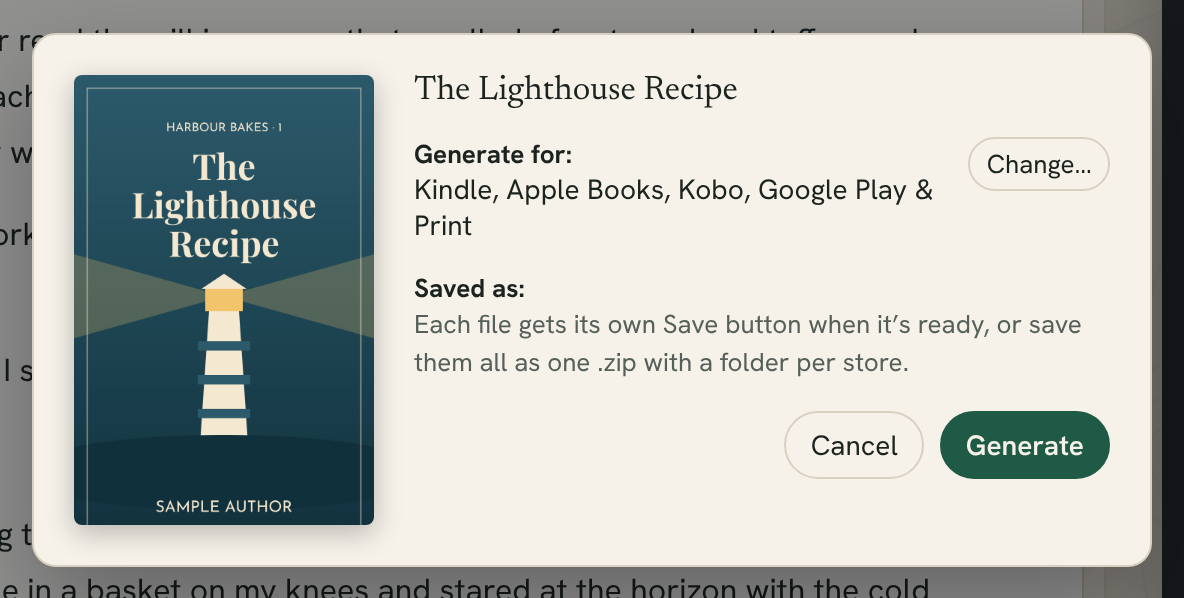
- Fleuron shows your cover and title, and a Generate for: line listing what it will make.
- To change that list, click Change… (see below).
- Click Generate.
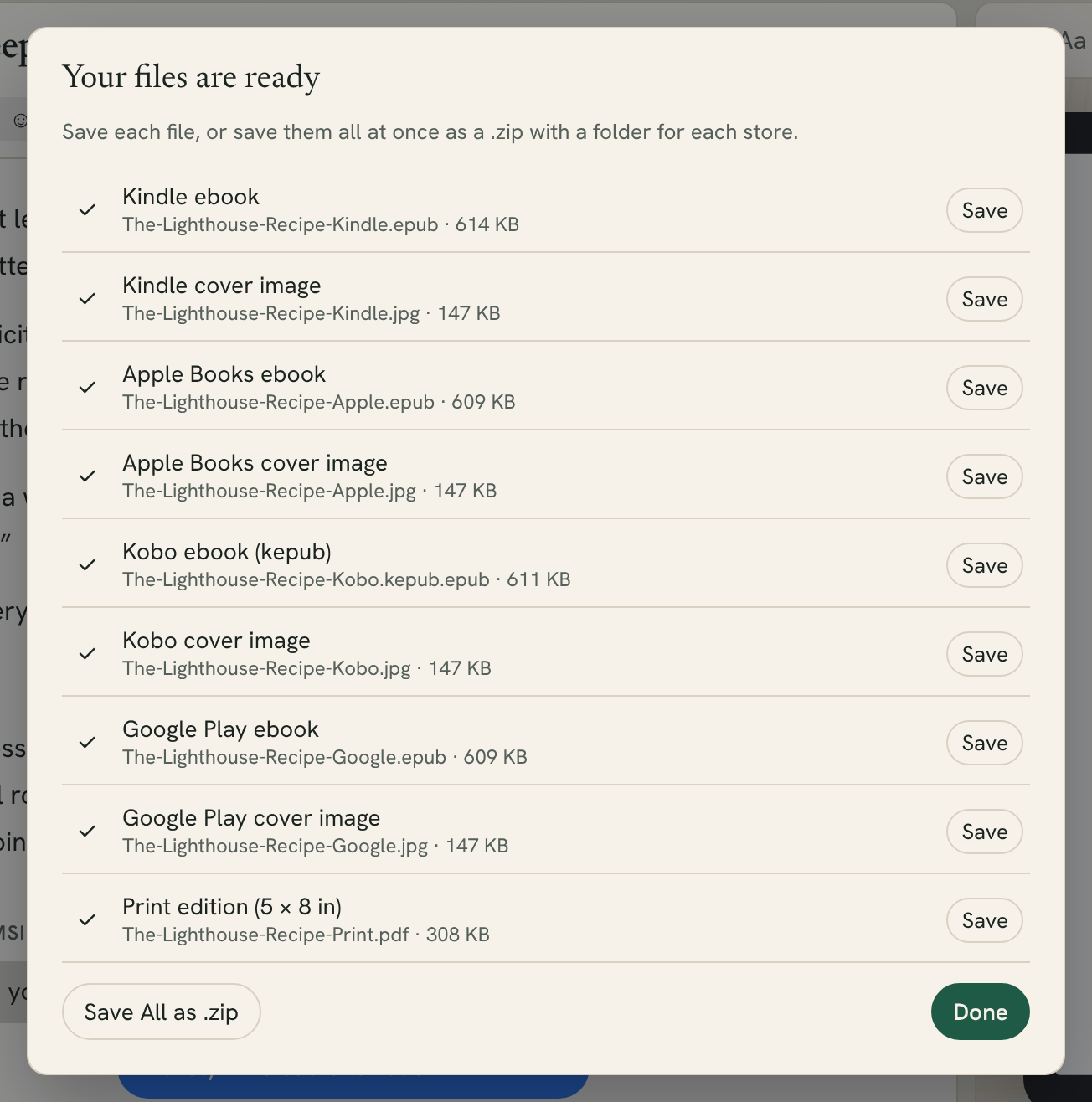
Fleuron builds each file in turn and shows a list with a tick beside each one as it's ready. The print edition takes longest.
Choosing stores and formats
Click Change… in the Generate window (or choose File ▸ Select Platforms…) to see Select platforms for generation:
- Ebooks: tick Kindle, Kobo, Apple Books, Google Play, Nook and Generic. Fleuron makes a separate EPUB for each one.
- Print: tick the box showing your trim size to make the print PDF. Print Settings… opens the print settings, where you can change the trim size, margins and more (see Print Overview and Settings).
- Other: tick Word (.docx) to make a Word file too (see Word Export and Narrator Script).
Click Continue to go back to the summary, then Generate.
Fleuron remembers your choice for this book. You can also set the stores you publish to in Book Settings, under Platforms.
Tip: Use Generic for any store or service that isn't listed, such as a distributor that sends your book to many stores at once.
Why one ebook per store?
Each store's ebook is made for that store. For example:
- Store links in your book (such as an Also By page) point to the right store in each edition.
- Text you've marked with Show Only In for one store's ebook appears only in that store's file (see Ebook-Only and Print-Only Content).
- Pictures are resized to suit each store.
- The Kobo ebook is a kepub, Kobo's own kind of EPUB, so its file name ends in .kepub.epub.
If your book has a cover, Fleuron also saves a JPEG copy of the cover for each store you chose, ready to upload beside the ebook. The print PDF doesn't use this cover: for a paperback cover, see Print Cover Template.
Note: If your book has no cover yet, Fleuron reminds you while it generates. Add one in Title Info ▸ Ebook Cover so the stores can show it.
Saving your files
When the files are ready, Fleuron says Your files are ready.
- Click Save beside a file to choose where to save it.
- Or click Save All as .zip to save everything in one .zip file, with a folder for each store (Kindle, Apple, Kobo and so on). This button appears when two or more files are ready.
After saving, click Show in Finder in the message that appears to find the file. Click Done when you've finished.
If a file couldn't be made, it's marked with ⚠ and a short message. The other files can still be saved.
Before you generate
Fleuron checks two things first:
- Tracked changes. If your book still has tracked changes to review, Fleuron asks before it goes on. Generated books read as if every change were accepted. Click Generate to carry on anyway, or cancel to review them (see Track Changes and Comments).
- Reused elements. If pages you reused from another book have changed there, Fleuron offers to update them first (see Reusing Elements).
For a full checklist before you upload, see Proofing and Uploading to Stores.
Generation settings
A few settings change how files are made. They're in Book Settings, under Generation, and they apply to all your books.
- Kindle image sizing: Higher Quality (up to 1200 px wide) or Smaller Size (up to 800 px wide). Smaller Size makes the Kindle file smaller, which lowers Kindle delivery costs.
- Generic ebook format: EPUB 3 or EPUB 2. EPUB 2 is for older stores and distributors. Footnote pop-ups and lists that continue their numbering need EPUB 3.
- Include the book's subtitle in the folder name (Save All as .zip).
- Add the date to file names, so files from different days don't get mixed up.
To open Book Settings, choose File ▸ Book Settings….
File names
Files are named after your book's title and the store, for example:
The-Lighthouse-Recipe-Kindle.epubThe-Lighthouse-Recipe-Kobo.kepub.epubThe-Lighthouse-Recipe-Kindle.jpg(the cover)The-Lighthouse-Recipe-Print.pdfThe-Lighthouse-Recipe.docx
Tip: Generate again whenever you change your book. Fleuron never changes files you've already saved, so upload the newest ones.