Writing Tools
Corkboard, Outliner and Timeline
Fleuron has three planning views for your book: the Corkboard (index cards), the Outliner (a table) and the Timeline (when each chapter happens and who is in it). This article shows how to open them, give chapters a synopsis, status and colour label, and move chapters around.
Everything you add here is a note for you. Synopses, statuses, labels and timeline details never appear in your book.
Opening the planning views
- Click the Corkboard button below your contents list (or press ⌥⌘B).
- Or choose View ▸ Corkboard, View ▸ Outliner or View ▸ Timeline.
Once a view is open, switch between them with the Corkboard, Outliner and Timeline buttons at the top.
To go back to writing, click ✕ at the top right, press Esc, or click a chapter's title to open it in the editor.
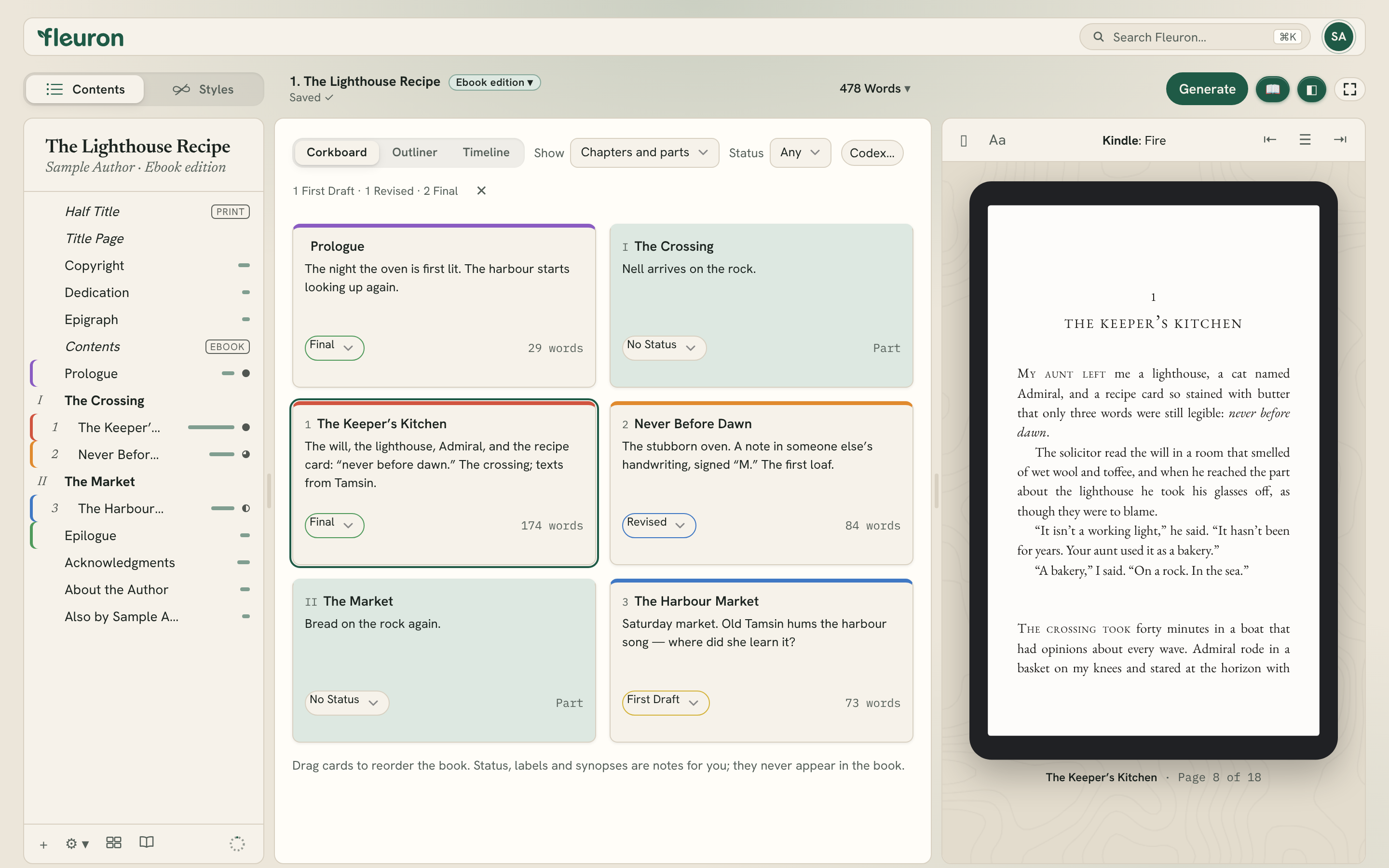
The Corkboard
Each chapter is an index card with its number, title, a synopsis, its status and its word count.
- Click in a card and type a synopsis: a line or two about what happens.
- Choose a status from the menu at the bottom of the card.
- Click a colour swatch to give the card a colour label.
The Outliner
The Outliner shows the same information as a table, with columns for #, Title, Synopsis, Status, Label and Words. If your Codex has characters, there is also a POV column where you choose whose point of view each chapter is told from.
The Timeline
The Timeline helps you keep track of when things happen.
- Type in the When column, for example “Day 1, dawn”.
- Choose a point-of-view character in the POV column.
- Each character in your Codex has a column. A dot shows the chapters where they appear, and a ringed dot marks the point-of-view character. Hover over a dot to see how many times they're mentioned.
The Timeline needs characters in the Codex to show who appears where. See The Codex.
Reordering chapters
Drag a card (on the Corkboard) or a row (in the Outliner or Timeline) to a new place. Your book's chapters move with it, just as if you'd dragged them in the contents list.
Statuses and colour labels
Each chapter can have one of these statuses: No Status, To Do, First Draft, Revised or Final. The top of the planning views shows a tally, such as “3 First Draft · 2 Revised”, so you can see how far along you are.
Colour labels are None, Red, Orange, Yellow, Green, Blue, Purple and Gray. Use them however you like: one colour per point of view, per subplot, or for chapters that need work.
You can also set these for the chapter you're working on with Chapter ▸ Status and Chapter ▸ Label. In the contents list, a chapter with a status shows a small dot, and a labelled chapter shows its colour.
Choosing what to show
Use the menus at the top of the planning views:
- Show: Chapters and parts, All text elements or Everything.
- Status: Any, No status, or one status, to see only those chapters.
The Codex… button opens your Codex.
Note: The Non-fiction workspace hides the Corkboard and Timeline, but the Outliner is always there. See Workspaces.