Your Book
Elements of Your Book
In Fleuron, a book is a list of elements: chapters, parts, a title page, a dedication, an Also By page and so on. The list in the sidebar shows them in order. This article explains the kinds of elements and how to work with them.
The sidebar
The sidebar lists every element in your book, from the front matter at the top to the back matter at the bottom. Click an element to open it.
- Chapters show their number. Parts and volumes show a Roman numeral, and the chapters inside a part are indented under it.
- An element that only appears in ebooks or only in print has a small ebook or print tag. See Ebook-Only and Print-Only Content.
- A coloured edge or a dot shows a label colour or a status, if you've set one.
To show or hide the sidebar, choose View ▸ Navigator (⌘T). To see each chapter's length as a bar, choose View ▸ Show Chapter Lengths.
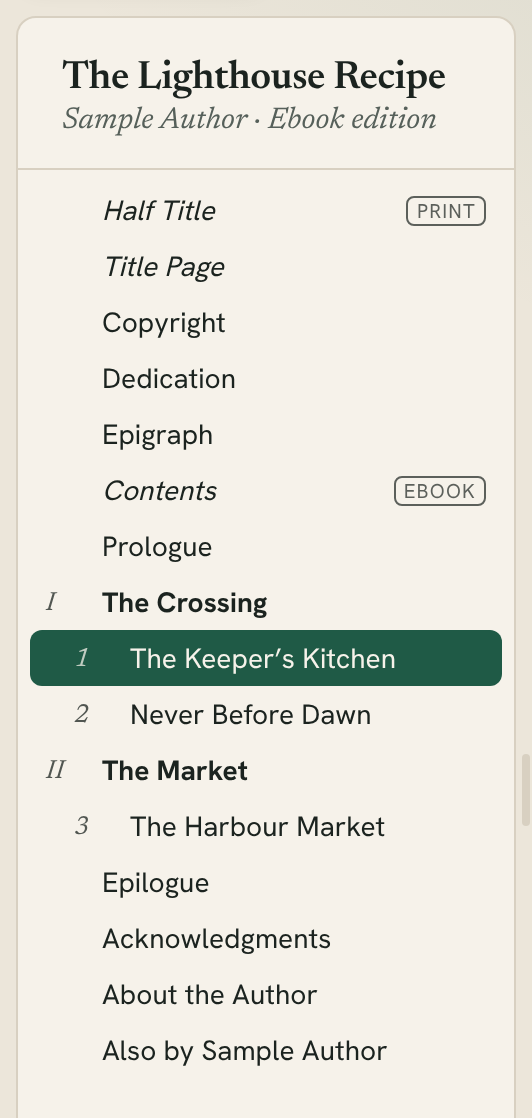
Kinds of elements
Front matter: Blurbs, Half Title, Title Page, Copyright, Dedication, Epigraph, Table of Contents, Foreword, Introduction, Preface.
Body: Prologue, Volume, Part, Chapter, Uncategorized, Full Page Image.
Back matter: Epilogue, Afterword, Endnotes, Bibliography, Acknowledgments, About the Author, Also By, Newsletter Sign-up.
Some elements fill themselves in:
- Title Page is built from your title info.
- Half Title shows only the book's title. It is print only at first, so ebooks skip it.
- Table of Contents builds itself from the elements after it. Click it to choose whether to List chapters within parts, Show subtitles, List subheads within chapters, and how many Subhead levels to list. It is set to ebooks only at first; to give your paperback a contents page, change its Include In setting (see Ebook-Only and Print-Only Content).
- Endnotes lists every endnote in the book, grouped by chapter. Fleuron adds it for you when you add your first endnote.
- Copyright starts with a copyright line you can edit. It has a tick box, Add "Formatted with Fleuron" note, which you can switch off.
- Also By, About the Author and Newsletter Sign-up can keep themselves up to date from your author profile. See Author Profiles and Back Matter.
- Full Page Image holds one picture on a page of its own. See Pictures.
Uncategorized is for anything that doesn't fit another kind, such as a sneak peek of your next book.
Adding an element
- To add a chapter, click + at the foot of the sidebar, or choose Chapter ▸ Add Chapter (⇧⌘N). The new chapter goes after the one you're in.
- To add any other element, choose Chapter ▸ Add Element and pick one, or click ⚙ ▾ at the foot of the sidebar and choose Add Element.
- To add several at once, choose Chapter ▸ Add Multiple Elements…, tick the ones you want, and click Add Elements.
Each element goes to its usual place: front matter at the front, back matter at the end.
Note: Your workspace can hide some kinds. For example, the Non-fiction workspace hides Prologue and Epilogue, and the Fiction workspace hides Introduction, Foreword and Bibliography.
Moving elements
Drag an element up or down the sidebar. You can also select it and press ⌥↑ or ⌥↓.
Front matter, body and back matter keep their order, so an element moves only within its own part of the book. If you try to drag an epilogue into the front matter, Fleuron tells you and leaves it where it was. Uncategorized elements and full-page images can go anywhere.
Changing an element's kind
If an element came in as the wrong kind (a chapter that should be the epilogue, say), select it and choose Chapter ▸ Convert To, then the kind you want. You can also click ⚙ ▾ beside the element's title and change Type.
Removing an element
Select it, then do one of these:
- Press Delete on your keyboard while the sidebar is selected.
- Choose Edit ▸ Delete (⌘⌫) after clicking the element in the sidebar.
- Click ⚙ ▾ at the foot of the sidebar and choose Remove "name".
If the element has text, Fleuron asks first. Changed your mind? Edit ▸ Undo (⌘Z) brings it back.
Parts
A part page groups the chapters that follow it, up to the next part. Those chapters are indented in the sidebar and listed under the part in the table of contents.
To add a part, select the first chapter that belongs in it and choose Chapter ▸ Create Part from Selection. Fleuron puts a new part just before that chapter. Give it a title.
Chapter numbers continue across parts. To start again at 1 in each part, change Chapter numbers across parts in Book Settings.
Volumes
A volume holds a whole book inside a box set, or a sneak peek of your next book. It starts with its own title page, its chapters are numbered from 1 again, and the contents lists its chapters under it.
To add one, select the first element that belongs in it and choose Chapter ▸ Create Volume from Selection. The volume holds that element and the body elements after it. To make a whole box set from books in your Library, see Creating a Box Set.
Splitting and merging chapters
- To split a chapter, click in the text where the new chapter should start and choose Chapter ▸ Split Chapter at Cursor. The text from there on becomes a new chapter after this one.
- To merge two chapters, open the first and choose Chapter ▸ Merge with Next Chapter. The second chapter's title stays, as a subhead where its text begins.
Both are also under ⚙ ▾ beside the chapter title.
Element settings
Click ⚙ ▾ beside an element's title to see its settings. Which ones you see depends on the kind of element:
- Type: the kind of element.
- Include in: all editions, ebook only or print only. See Ebook-Only and Print-Only Content.
- Begin on (print): whether the element starts on the right side, the left side or either side of a printed spread, or follows the style.
- Show heading and Numbered. See Chapter Headings.
- Add subtitle, Add heading image…, Add chapter author and Clear title.
- Split chapter at cursor and Merge with next chapter.
Most of these are in the Chapter menu too.
Status and labels
For planning, you can give each element a status (To Do, First Draft, Revised or Final) and a colour label with Chapter ▸ Status and Chapter ▸ Label. They are only for you and never appear in the book. See Corkboard, Outliner and Timeline.
Moving between chapters
Choose Chapter ▸ Go to Next Chapter (⇧⌘]) or Chapter ▸ Go to Previous Chapter (⇧⌘[). These skip parts and pages that fill themselves in.