Your Book
Chapter Headings
Every chapter opens with a heading: usually a chapter number, a title, or both. This article covers what goes into a heading and where to change it.
What a heading is made of
A chapter heading can have up to four parts, from top to bottom:
- the chapter number, which Fleuron adds for you,
- the title, which you type,
- a subtitle,
- a chapter author, for anthologies or a guest foreword.
A heading image can sit above or below the words.
You type the title and the other parts at the top of the chapter, above the text. The preview shows how they look in your book's style.
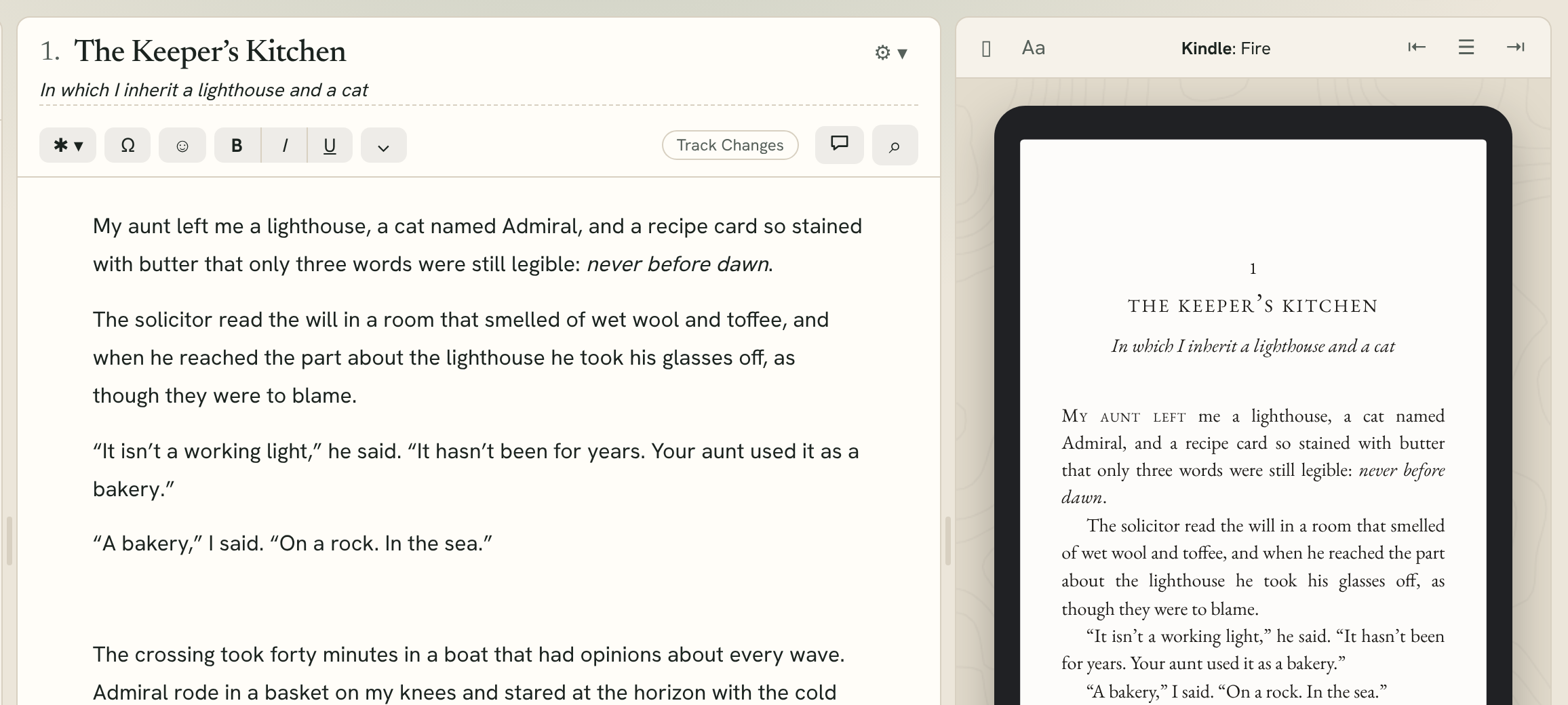
Chapter numbers
Fleuron numbers your chapters in order, so you never type "Chapter 7". When you move, add or remove a chapter, the numbers update themselves.
- If you leave the title empty, the heading shows only the number. The sidebar calls it "Chapter 7" so you can still find it.
- To leave one chapter out of the numbering (an interlude, say), click ⚙ ▾ beside the title and untick Numbered, or choose Chapter ▸ Numbered. The chapters after it are numbered as if it weren't there.
- To start from a number other than 1, or to start again in each part, see Numbering in Book Settings.
How the number looks ("1", "One", "Chapter One", "I", "01" and so on) is part of the style. See Changing how headings look below.
Tip: Don't type "Chapter 7" into the title box. Fleuron adds the number already, so you'd see it twice.
Adding a subtitle or chapter author
- Click ⚙ ▾ beside the chapter title.
- Click Add subtitle or Add chapter author.
- Type it in the box that appears under the title.
Subtitles work on chapters, parts, volumes, the prologue, epilogue, foreword, introduction, preface, afterword and uncategorized elements. A chapter author works on chapters, volumes, forewords, introductions and afterwords.
Clearing a title
To go back to the element's default title, click ⚙ ▾ and choose Clear title, or choose Chapter ▸ Heading ▸ Clear Title. A chapter goes back to showing only its number; a page like Acknowledgments goes back to "Acknowledgments". The subtitle and chapter author stay.
Hiding a heading
Some pages read better with no heading at all, such as a short letter at the front of the book. Click ⚙ ▾ and untick Show heading, or choose Chapter ▸ Heading ▸ Display Heading In Book to switch it off. The element keeps its title in the sidebar, so you can still find it.
Heading images
A heading image is a small picture that decorates a chapter opening, such as a map pin, a family crest or an ornament.
- Open a chapter.
- Click ⚙ ▾ beside the title and click Add heading image…, or choose Chapter ▸ Heading ▸ Add Heading Image….
- Choose a picture.
A small copy of the picture appears under the title box. Click it to open its settings:
- Description: what the picture shows, for screen readers. Leave it empty if the picture is only decoration.
- Use for All Chapters (or Use for All Parts on a part): puts the same picture on every chapter. The book stores it only once.
- Replace… and Remove.
Fleuron also tells you whether the picture has enough pixels for ebooks and for print at its size.
Heading images work on chapters, parts, the prologue and epilogue, foreword, introduction, preface, afterword, acknowledgments, About the Author, Also By and uncategorized elements.
Changing how headings look
How headings look is part of your book's style, so one change updates every chapter.
- Click Styles at the top of the sidebar.
- Click Configure ▸.
- Choose Heading in the sidebar.
- Pick one of the heading designs, or click ⚙ Settings for more.
In Heading Settings you can change:
- Heading Size: Small, Medium or Large.
- Chapter Numbers: 1, One, Chapter 1, Chapter One, I, Chapter I, 01 or None.
- Title Size and Accent Color.
- for heading images: Image Size, Position (above or below the heading, for centred headings) and Include In (ebook and print, ebook only, or print only).
The theme builder below these goes further: fonts, letter spacing, frames, lines and ornaments. See The Theme Builder and Applying Styles.
Note: If your book isn't in English, words like "Chapter" follow the book's language. To use a different word, change Terminology in Book Settings.