Library and Series
Author Profiles and Back Matter
An author profile holds a pen name and the details your books share: a short bio, a photo, your website and your newsletter link. Fleuron uses it to fill in your Also By, About the Author and Newsletter Sign-up pages, and keeps those pages up to date in every book. This article shows how to set up your authors and use self-updating back matter.
Adding an author
- In the Library, click + New Author at the bottom of the authors list.
- Fill in:
- Pen name: the name on your covers.
- Colour: the author's colour in the Library.
- Website: your website's address.
- Newsletter: the link readers use to sign up.
- Short bio: a few lines for About the Author.
- Photo: click Choose Photo… to add an author photo, or Remove to take it off.
- Languages: tick each language you publish in under this name.
- Click Save.
To change an author later, click their name in the authors list, then click Edit Author… at the top of the Library.
If you rename a pen name, every book by that author changes to the new name.
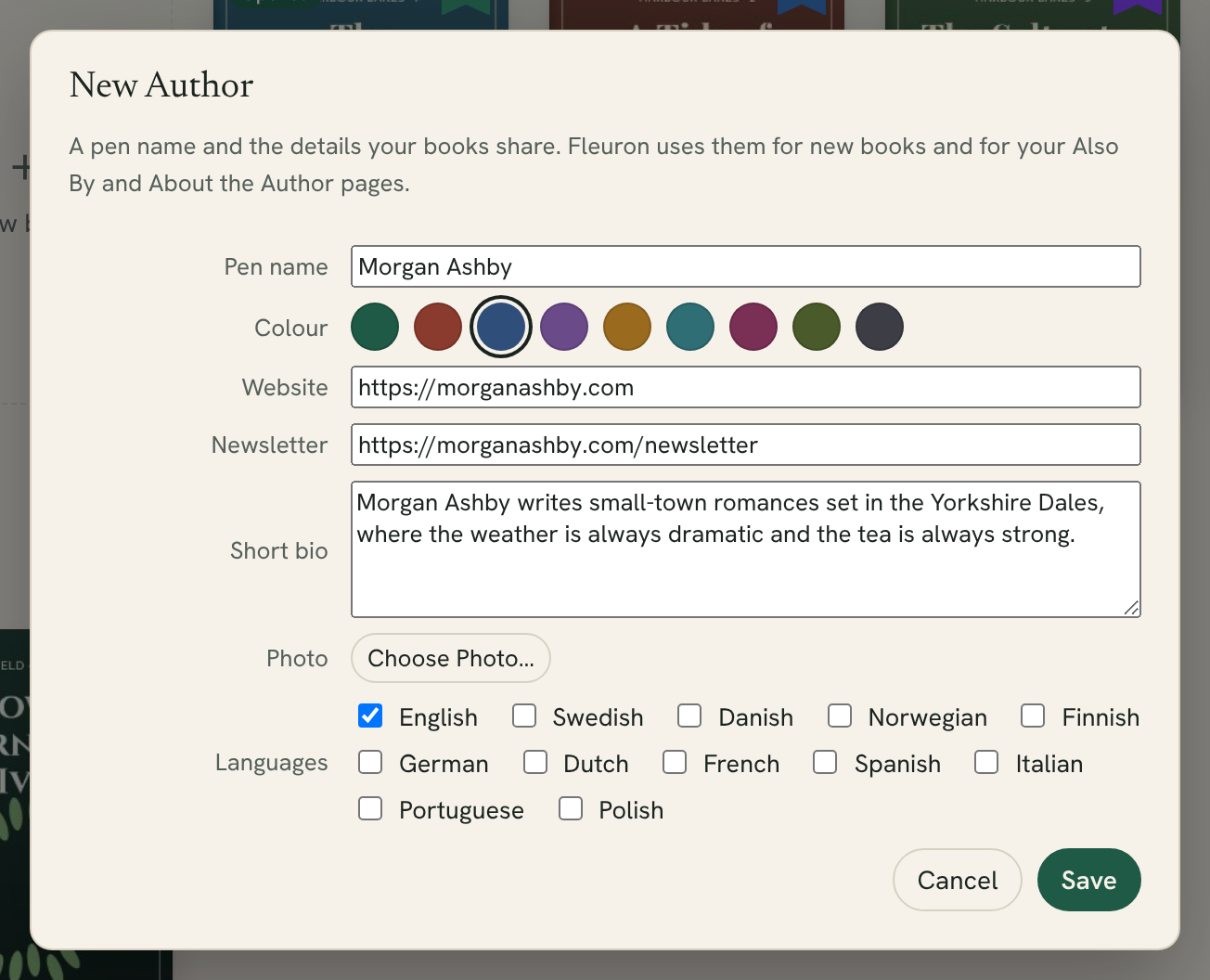
Several pen names and languages
Add an author for each pen name you write under. Each one has their own colour, so you can tell their books apart at a glance.
If you publish under one pen name in several languages, tick each language under Languages. When an author has books in two or more languages, the authors list shows each language under their name, so you can see just their German books, for example. A book in a language other than the author's first one shows that language on its cover in the Library.
Which books belong to an author
A book belongs to the author whose pen name matches the author name in its Title Info. You can also:
- Click ⋯ on a book's cover and choose Move to Author.
- Select several books, click Change ▾, and choose Move to Author.
- Choose an author in the list before clicking New Book, so the new book is theirs from the start.
Deleting an author
- Click the author's name in the authors list, then Edit Author….
- Click Delete Author and confirm.
Their books stay in the Library, under No author set.
Back matter that updates itself
Three back matter pages can fill themselves in from the author in your Library:
- Also By lists the author's other books.
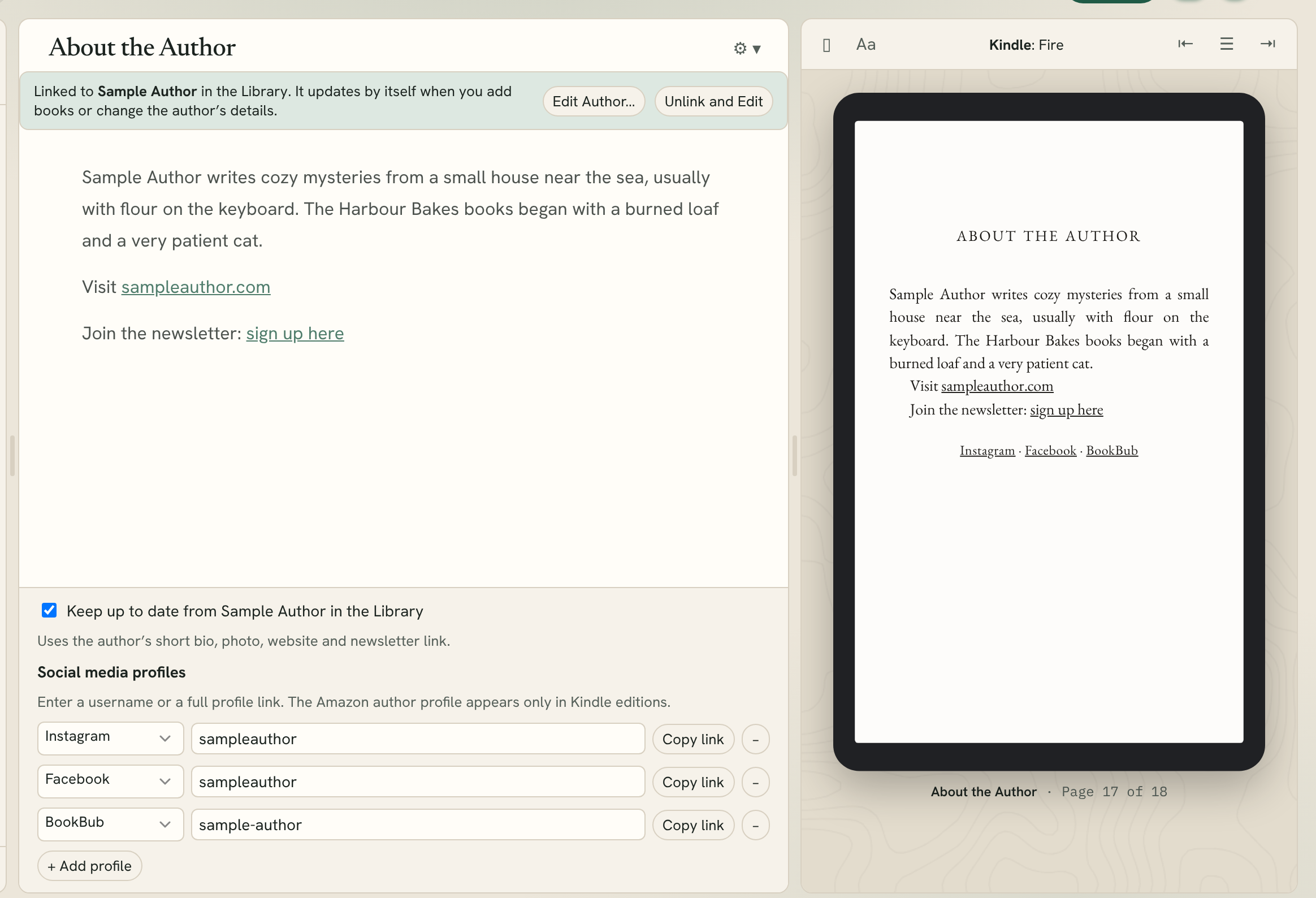
- About the Author uses the short bio, photo, website and newsletter link.
- Newsletter Sign-up uses the newsletter link.
To add one, use Chapter ▸ Add Element and choose Also By, About the Author or Newsletter Sign-up. If the book's author is one of your Library authors, the page fills itself in straight away.
While a page is kept up to date, you can't type in it. A bar above it says it's linked to the author, with two buttons:
- Edit Author… opens the author's details. Change them there, and the page changes in every book.
- Unlink and Edit turns it into ordinary text you can edit. It no longer updates by itself.
Below the page's text, Keep up to date from (the author) in the Library switches updating on or off for that one page.
The Also By page
A self-updating Also By page lists the author's other books:
- only books in the same language as this book,
- only ebooks in an ebook, and only print books in a print book,
- each title once, even if you have several editions of it,
- grouped by series in reading order, with books in no series after them.
Each title is a store link, so readers can tap it to buy the book. In each store's ebook, the link goes to that store. For this to work, add each book's store IDs (such as its ASIN) in its Title Info, under In the stores.
Exclude the title of this book leaves the current book off its own list.
Listing fewer books
A long list at the end of a book can make readers think the story goes on. Below the Also By page, choose Which books to list:
- All the author's books in this language
- Only this series
- Only the next book in the series
If the book has no series, or there is no next book yet, all the books are listed.
About the Author: social media
Below an About the Author page, under Social media profiles, you can add your profiles on services such as Instagram, Facebook, TikTok, BookBub, Goodreads and more. Type a username or a full link, and click + Add profile for another. An Amazon author profile appears only in Kindle editions.
Switching it off for a book
To keep a book's back matter exactly as it is now:
- Choose File ▸ Book Settings….
- Under Back matter, untick Keep Also By, About the Author and Newsletter pages up to date from the Library.
The pages stay as they are, and you edit them yourself. Tick it again to switch updating back on. Fleuron asks before replacing any text you've written.
Note: If the book's author isn't one of your Library authors, the pages can't fill themselves in. Set the author in Title Info to match a pen name in your Library.