Styles and Preview
Previewing Your Book
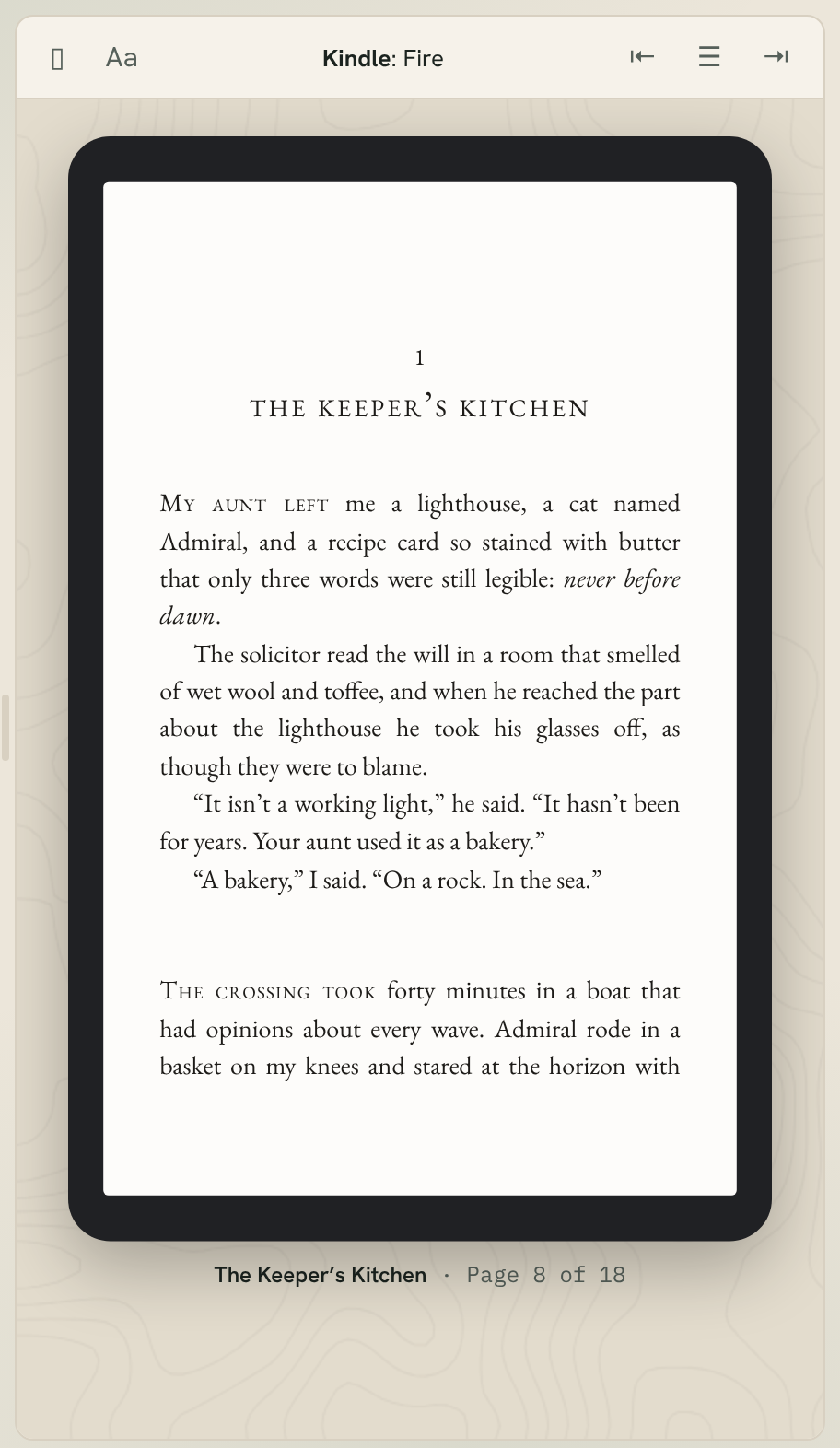
The preview on the right of the window shows your book as it will look to readers, and it changes as you write and style. This article covers choosing a device, turning pages, reader settings and the print preview.
Showing and hiding the preview
Click the 📖 button at the top right of the window, or choose View ▸ Preview, to show or hide the preview. Drag the edge between the editor and the preview to make it wider or narrower.
Choosing a device
Click the device name at the top of the preview (or the small device button at its left) and choose a device. You can also choose Preview ▸ Device.
The devices are grouped by store:
- Kindle: Paperwhite (an e-reader), Fire (a tablet) and Phone app
- Apple Books: iPad and iPhone
- Nook: GlowLight
- Kobo: Clara
- Google Play: Android Phone and Android Tablet
- Generic: E-reader
- Print: the printed paperback, as two-page spreads
Each store's preview shows what that store's ebook will contain. For example, a passage you've marked for Kindle only shows in the Kindle previews, and content marked Print Only doesn't show on ebook devices. See Ebook-Only and Print-Only Content.
Turning pages
- Click ‹ or › beside the device, or click near the left or right edge of the screen.
- Press ← or → (or Page Up and Page Down) when you're not typing in the editor.
- Choose Preview ▸ Previous Page (⌘[) or Preview ▸ Next Page (⌘]).
To jump between chapters, use ⇤ and ⇥ at the top right of the preview, or Preview ▸ Previous Chapter and Preview ▸ Next Chapter. Click ☰ to go straight to any chapter.
The bottom of the preview shows where you are: the chapter, and the page number.
Keeping the preview and editor together
When you click a chapter in the sidebar, the preview turns to it. Two commands help when you've wandered off:
- Preview ▸ Show Editor Content in Preview (⌘Y) turns the preview to the chapter you're editing.
- Preview ▸ Show Preview Content in Editor (⇧⌘Y) opens the chapter the preview is showing.
Reader settings
Readers can change the text on their devices, so it's worth checking your book the way they'll see it. Click Aa at the top of the preview:
- The row of A buttons sets the text size.
- Original, Baskerville, Georgia, Helvetica and Palatino change the font, like a reader choosing a font on their device. Original shows your book's own fonts.
- White, Sepia and Black change the page colour.
These settings change only the preview, never your book.
Tip: Try your book at the largest and smallest text sizes, and on a phone. Chapter headings and pictures should still look good.
The print preview
Choose Print from the device menu to see your paperback as real two-page spreads, with running heads, page numbers and the right trim size.
- Turn the spreads with ‹ and ›, or with ← and →.
- The bottom of the preview shows the chapter, the page numbers on screen, the total number of pages and the trim size.
The first time you open the print preview, laying out the pages takes a few seconds. After that it updates by itself as you write and change styles.
Some settings only show in print, such as headers and footers, backgrounds and borders, and printed edges. When you open them in Styles, the preview switches to Print by itself, and goes back to your device when you leave. See Print Overview and Settings.
Preview background
To change what's behind the device, choose View ▸ Preview Background. Design’s Own follows the app design you use; the others include Linen, Paper Grain, Dots, Grid and Plain.
Note: The preview is a close match to real devices, but each store's app has its own quirks. Before you publish, look at your generated files with the store's own previewer, such as Kindle Previewer. See Proofing and Uploading to Stores.