Styles and Preview
Applying Styles
A book style sets how your whole book looks: chapter headings, the first paragraph of each chapter, scene breaks, quotations, fonts and more. This article shows you how to pick a style, change its parts, and keep your favourite mix as a style of your own.
Opening the styles
- Click Styles at the top of the sidebar (or choose View ▸ Styles).
- The sidebar lists the style groups, and the middle of the window shows the styles in that group.
- To go back to your chapters, click Contents (or choose View ▸ Contents).
The groups are Popular, Serif, Sans serif, Script, Accessible and All styles. Once you've saved a style of your own, a Saved Styles group appears too.
Each style is shown with the opening of your own first chapter, so you see your words, not sample text. The style your book uses shows a small print spread beside it.
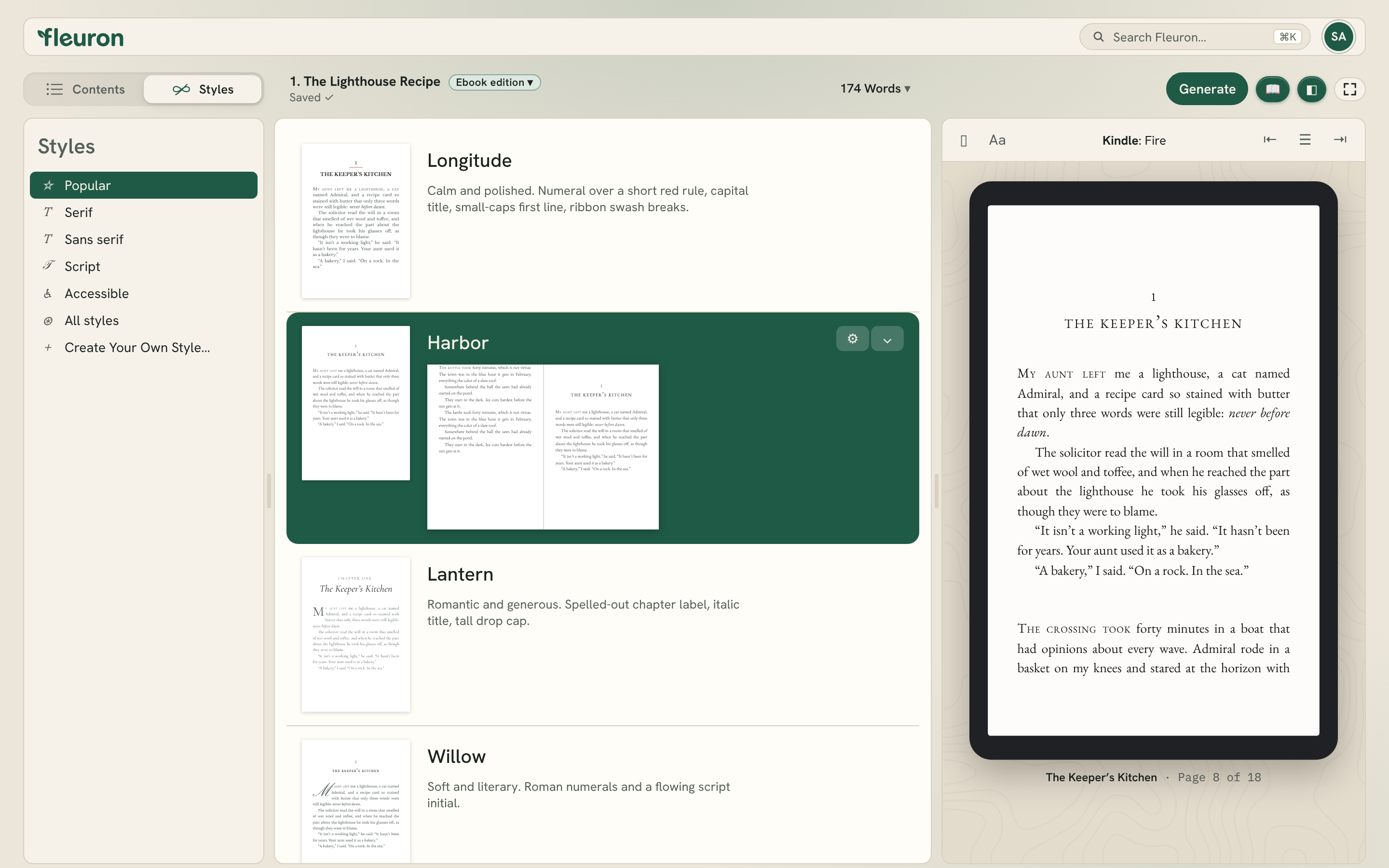
Choosing a style
Click any style in the list. Your book changes straight away, in the preview and everywhere else, and Fleuron tells you which style it's now using.
Nothing is lost when you switch: your text stays as it is, and you can switch back at any time.
Tip: The Accessible group has two styles made for easy reading: Dyslexic, built around the OpenDyslexic font, and Legible, which uses Atkinson Hyperlegible. Both are left aligned, with space between paragraphs and no hyphenation.
Changing parts of a style
Every style can be changed piece by piece, like Vellum's Configure.
- Click the style your book uses so it's selected.
- Click its ⚙ button, or click ⌄ and choose Configure Style….
- The sidebar now lists the parts of the style. Click one, such as Heading or Ornamental Break.
- Pick a look. Many parts show their choices as cards you can step through with the ‹ and › arrows (or the arrow keys); the card in front is the one in use.
- When you're done, click ‹ at the top of the sidebar to go back to the styles.
By default the list shows only the parts your book uses (Features in Book). To see everything, change the menu at the bottom of the sidebar to All Features.
The parts you can change are:
- Heading: the chapter heading. See The Theme Builder for every setting.
- Subheads: headings inside a chapter, levels 1 to 5, each with its own Alignment and Look (Small caps, Capitals, Italic, Bold or Plain). Level 1 is a Word Heading 2.
- First Paragraph: how a chapter's opening paragraph begins, such as Drop cap, Raised cap, Small caps first line or Small-caps lead-in. It isn't used in front and back matter, or in the Accessible styles.
- Paragraph After Break: how the paragraph after a scene break, ornamental break or page break begins.
- Body: whether paragraphs are marked with Indentation or Spacing, Justify text, Allow hyphenation and Hyphenate capitalized words. Its Print edition box has the body font, the Emoji font for print, and Clarify breaks at the top or bottom of a page (a scene break that falls at the edge of a printed page is shown as • • •).
- Fonts: the heading, body text and drop cap fonts. See Fonts.
- Ornamental Break: the picture used for an ornamental break, from nearly 40 ornaments, with a Size slider. Choose Create Custom… to use your own image; a transparent PNG at least 300 pixels wide works best.
- Block Quotation, Verse, Text Conversation and Written Note: the look of each of these text features. Colored chat bubbles let you pick the Sent Bubbles and Received Bubbles colours. Written notes have three variants, each with its own look.
- Photograph, Portrait and Caption: frames for photographs, the shape of portraits (Rectangle, Rounded or Circle), and the caption style.
- Header & Footer, Background & Border and Special Edition: print-only parts. See Headers and Footers, Backgrounds and Borders and Printed Edges.
While you change a part, the preview turns to a page where it shows: a chapter opening, a scene break, and so on. The print-only parts switch the preview to Print, and back again when you leave them.
Note: Your changes belong to that style in this book. The style's name shows an asterisk (*) when it's been changed. If you switch to another style and come back, your changes are still there. The fonts you choose are different: they stay with the book whichever style you pick.
Going back to the original
To undo all your changes to a style, select it, click ⌄ and choose Reset to Original. This clears the style's settings, its first paragraph and the fonts you chose.
Saving your own style
When you've made a mix you like, save it so you can use it in other books.
- Select the style, click ⌄ and choose Save Style….
- Type a name and click Save Style.
Your style goes into Saved Styles and can be chosen in every book. You can also start one from scratch: click Create Your Own Style… at the bottom of the style groups, give it a name, and Fleuron opens it for you to change.
Saved styles are locked so they don't change by accident. To work with one, select it and click ⌄:
- Edit Style… opens it to change. When you've finished, click Contents at the top of the sidebar and Fleuron saves your changes into the style.
- Rename… changes its name in all your books.
- Select Original Style switches the book back to the style it was based on.
- Apply to Original Style copies its settings onto the style it was based on, so you can change them further and save again.
- Remove Saved Style… takes it out of Saved Styles. The book keeps its look, as the original style with the same settings.
Tip: A book that uses one of your saved styles keeps a copy of it. If you open the book on another computer, the style shows as recovered, and Add to Saved Styles in its ⌄ menu adds it to that computer's Saved Styles.
Styles and workspaces
If you've chosen the Fiction or Non-fiction workspace, Styles hides the parts that kind of book rarely needs. For example, Non-fiction hides text conversations, written notes, verse and drop caps. Anything your book already uses still shows. See Workspaces.