Your Book
The Text Editor
The middle of the window is where you write and edit. This article covers typing and formatting, the toolbar above the text, and the options that make the editor comfortable to work in.
Writing in the editor
Click a chapter in the sidebar and start typing. Fleuron saves as you write.
Press Enter once to start a new paragraph. You don't need blank lines between paragraphs or Tab to indent: your book's style sets the indents and spacing. An empty line counts as a scene break.
The editor shows your text in a plain, readable way. To see how a page really looks in your book, watch the preview on the right. See Previewing Your Book.
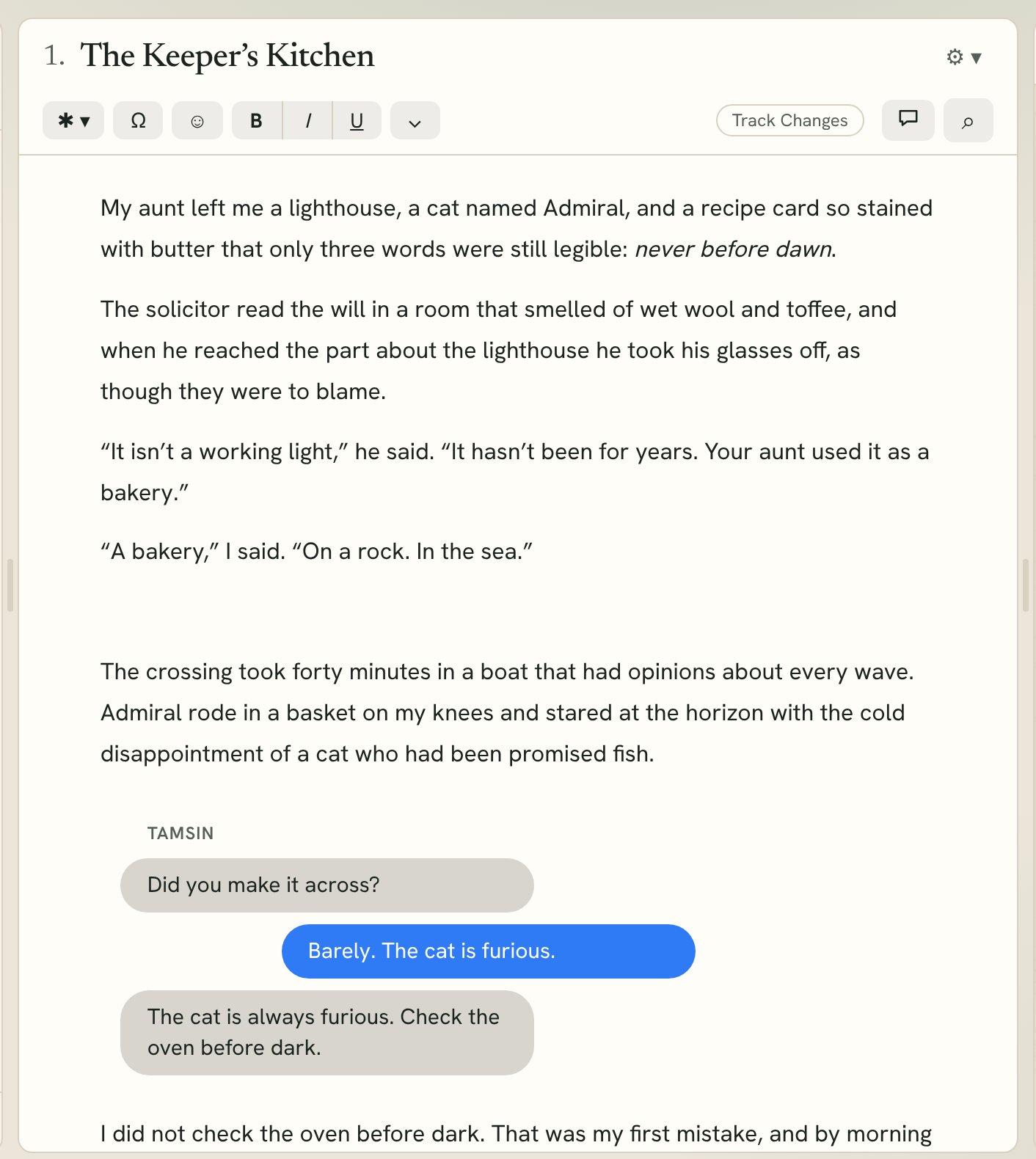
The toolbar
Above the text, from left to right:
- ✱ ▾ adds a text feature, such as a subhead, scene break, picture, list or footnote. See Adding Text Features.
- Ω inserts a special character.
- ☺ inserts an emoji.
- B, I and U for bold, italic and underline.
- ⌄ opens more text styles.
- Track Changes, the comment button and the find button sit on the right. See Track Changes and Comments and Search Fleuron and Find & Replace.
Bold, italic and underline
Select some text and click B, I or U, or use Text ▸ Bold (⌘B), Text ▸ Italic (⌘I) or Text ▸ Underline (⌘U). With nothing selected, the style switches on for what you type next.
Tip: Use italic rather than underline for emphasis. In ebooks, underlined words look like links.
More text styles
Click ⌄ on the toolbar, or choose Text ▸ More Styles, for:
- Small Caps, Sans Serif and Monospace,
- Superscript and Subscript,
- Strikethrough,
- Disable Hyphenation: never split the selected word at the end of a line. The word gets a blue underline in the editor only. Choose it again (or right-click the word) to allow hyphenation again.
The ⌄ menu also has Page Break, Scene Break and Numbered List, plus Apply smart quotes (curl the straight quotes in this element) and Find text conversations.
Changing capitals
Select some text and choose Edit ▸ Transformations ▸ Make Upper Case, Make Lower Case or Capitalize. Bold and italic stay where they were.
Special characters and emoji
Click Ω on the toolbar, or choose Edit ▸ Special Characters, for characters that are hard to type:
- Non-breaking space (keeps two words on one line), Non-breaking hyphen, Soft hyphen (a preferred place to break a word), Thin space and a Redaction block █,
- symbols such as the em dash —, en dash –, ellipsis …, section sign §, dagger †, copyright ©, degree °, fractions, € and £, ♥, ★ and arrows. Hold the pointer over a symbol to see its name.
Click ☺, or choose Edit ▸ Insert Emoji…, to pick an emoji. You can search, choose a skin tone, and find your recent ones. Kindle, Kobo and Nook ebooks get each emoji as a small picture.
Smart quotes and capitals as you type
Fleuron turns straight quotes into curly ones as you type, and capitalizes the first letter of each sentence. To switch either off, choose Edit ▸ Substitutions and untick Smart Quotes or Capitalize Sentences, or change them under Editing in Book Settings.
To curl the quotes in text you've already written, choose Edit ▸ Transformations ▸ Apply Smart Quotes.
Undo and Redo
Choose Edit ▸ Undo (⌘Z) and Edit ▸ Redo (⇧⌘Z). Typing is undone a word at a time. Bigger changes, such as removing a chapter or merging two, are undone as a whole, and the message that appears at the bottom often has its own Undo button.
Pasting
Paste with ⌘V as usual. Text copied from Word or a web page keeps its paragraphs, italics and bold. To paste plain text only, choose Edit ▸ Paste and Match Style (⌥⌘V).
When you paste a web address on its own, it becomes a link. A store page address (Amazon, Apple Books, Barnes & Noble, Kobo or Google Play) becomes a store link. See Adding Text Features.
Right-click menu
Select some text and right-click for Read Aloud, Add Comment, Disable Hyphenation, Show Only In, Cut and Copy.
To see your Mac's spelling suggestions instead, hold Shift while you right-click, or right-click without selecting anything.
Spelling
Fleuron underlines misspelled words as you type. To switch this off, untick Edit ▸ Spelling and Grammar ▸ Check Spelling While Typing.
Word count
The word count sits at the top of the window. Click it to choose what it counts: Words in Chapter, Words in Body Matter, Words in Book, both chapter and book, or % Through Book. The same menu opens Graph Word Count… and Writing Goals & Sprints…. See Goals, Sprints and Celebrations.
Focus Mode
When you want nothing but your words, choose View ▸ Focus Mode (⇧⌘F) or click the Focus Mode button at the top right. Each press hides more:
- the sidebar,
- also the preview,
- everything but your text, in full screen.
A fourth press, or Esc step by step, brings it all back.
Making the editor comfortable
These choices change only how the editor looks to you, never your book:
- View ▸ Editor Text Size: Small, Medium, Large or Extra Large.
- View ▸ Editor Font: Sans (clean, like the app) or Book Serif.
- View ▸ Typewriter Scrolling: keeps the line you're typing in the same place on the screen.
- View ▸ Invisible Characters: shows a ¶ at the end of every paragraph.
- View ▸ Navigator (⌘T) and View ▸ Preview: show or hide the sidebar and the preview. You can also drag the dividers between them to make them wider or narrower.
Moving around a long book
- Chapter ▸ Go to Next Chapter (⇧⌘]) and Chapter ▸ Go to Previous Chapter (⇧⌘[).
- Edit ▸ Find ▸ Jump to Selection (⌘J) scrolls back to where your cursor is.
- Preview ▸ Show Editor Content in Preview (⌘Y) turns the preview to the place you're editing, and Preview ▸ Show Preview Content in Editor (⇧⌘Y) does the opposite.
For all shortcuts, see Keyboard Shortcuts.