Generating and Publishing
Store Listing and Royalty Calculator
Fleuron keeps your store page details with your book: the book description, keywords, categories and prices. This article covers the Store Listing window, the royalty calculator, and the Publishing tab, which lists everything KDP asks for, ready to copy.
Everything here is saved with your book. Nothing is sent to any store: you copy it into the store's dashboard yourself.
Opening the Store Listing
Choose File ▸ Store Listing (Description, Keywords, Royalties)…. The window has three tabs: Book Description, Keywords & Categories and Royalties. Click Done when you've finished.
Writing your book description
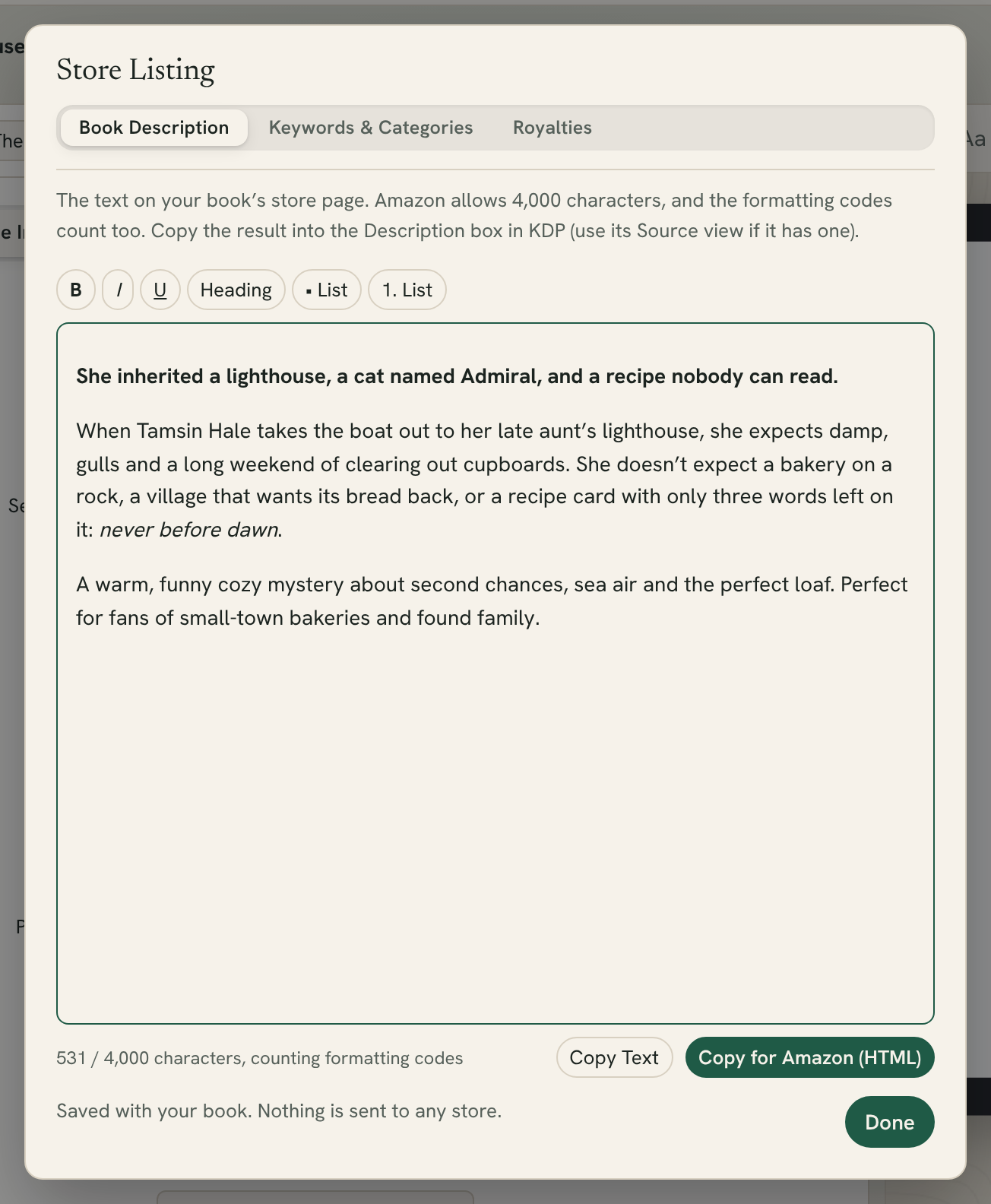
The description is the text on your book's store page.
- Click the Book Description tab.
- Type or paste your description.
- Format it with the buttons above it: B (bold), I (italics), U (underline), Heading, • List and 1. List. These are the kinds of formatting Amazon descriptions use.
Below the description, Fleuron counts the characters out of 4,000, including the formatting codes, because they count towards Amazon's limit too. The count is highlighted if you go over.
To put the description into KDP:
- Click Copy for Amazon (HTML) to copy it with its formatting codes. Paste it into the Description box in KDP (use its source or HTML view if it has one).
- Or click Copy Text to copy it as plain text, for a store that doesn't take formatting.
Tip: Your description is also added to your ebooks' details when you generate them, as plain text.
Keywords
KDP lets you add 7 keywords or short phrases that help readers find your book in a search.
- Click the Keywords & Categories tab.
- Type a keyword or phrase in each of the 7 boxes.
Each box counts its characters out of 50 and highlights a keyword that is too long. Below the boxes, Fleuron lists any words you've used that are already in your title, subtitle or series name: you can usually leave those out to make room for new ones.
Click Copy Keywords to copy them all, one per line.
Tip: Use phrases readers would type, like "cozy mystery with a cat", rather than single words. Don't use other authors' names, other book titles, or words like "bestseller" or "free".
Categories
Below the keywords are 3 boxes for categories. KDP asks you to choose categories when you publish. Noting yours here keeps them the same for your ebook and your paperback.
Estimating royalties
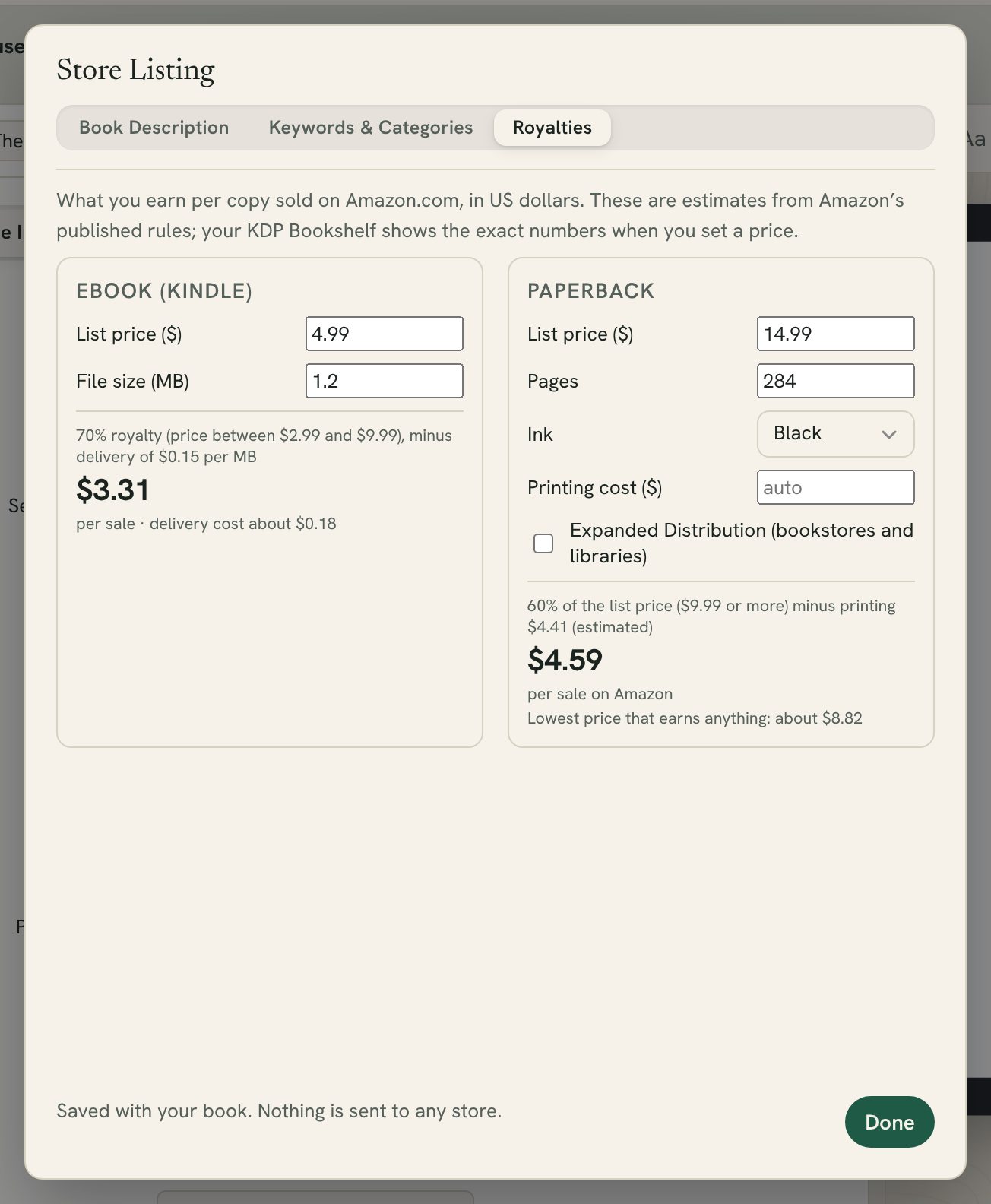
The Royalties tab estimates what you earn per copy sold on Amazon.com, in US dollars. These are estimates based on Amazon's published rules at the time this feature was made. Your KDP Bookshelf shows the exact amounts when you set a price, so always check there.
Ebook (Kindle)
- Type your List price ($).
- Check the File size (MB). Fleuron fills in an estimate from your book; change it to the size of your generated Kindle file if you know it.
Fleuron shows the royalty per sale:
- For a price from $2.99 to $9.99, it uses a 70% royalty, minus a delivery cost of $0.15 per MB.
- For any other price, it uses a 35% royalty.
Paperback
- Type your List price ($) and the number of Pages.
- Choose the Ink: Black, or Colour (enter the cost from KDP).
- Leave Printing cost ($) empty to let Fleuron estimate it for black ink, or type in the exact printing cost KDP shows you.
- Tick Expanded Distribution (bookstores and libraries) if you use it.
Fleuron shows your royalty per sale on Amazon (60% of a list price of $9.99 or more, or 50% below that, minus printing), the Expanded Distribution royalty (40% minus printing) if ticked, and the lowest price that earns anything. If a price would lose money, Fleuron tells you to raise it.
Note: For colour printing, Fleuron can't estimate the cost. Type in the printing cost from KDP to see your royalty.
The Publishing tab: everything KDP asks for
The Publishing tab goes down KDP's own forms in order, with a Copy button beside each answer. Open KDP beside it and copy each answer across.
To open it, choose File ▸ Book Properties (Title Info)… and click the Publishing tab.
It has these sections:
- Status: whether the book is a draft, on pre-order or published (see Book Status and Release Plan).
- Fetch from Amazon: for a book that's already on Amazon (see Fetch from Amazon).
- Kindle eBook Details: language, title, subtitle, series, edition number, author, contributors, the description, publishing rights, whether the book has sexually explicit images or title, reading age, primary marketplace, your 3 categories, your 7 keywords (with Copy All 7) and the release option.
- Kindle eBook Content: KDP's questions about AI-generated text, images and translations, the ebook ISBN and the publisher. Fleuron has no AI features, so if you wrote and designed your book yourself, the answers here are usually None. Match them to your own book.
- Kindle eBook Pricing: the ebook list price.
- Paperback: the paperback ISBN, trim size, interior ink and paperback list price.
Title, subtitle, series, author and ISBN come from Title Info. The description, keywords, categories and prices are the same ones the Store Listing keeps, so a change in one place shows in the other. Things only KDP asks for, such as the edition number, rights and paperback ISBN, are kept on the Publishing tab.
Click Copy Everything as a List at the top to copy all the answers at once, for example to keep in your notes.
Tip: The description's Copy button keeps its bold and lists when you paste it into KDP's description box. Use Copy as HTML for KDP's HTML view or for other stores.