Library and Series
Book Status and Release Plan
Fleuron keeps track of where each book stands: still a draft, up for pre-order, or published. For pre-orders it reminds you when the final file is due and when release week arrives, and the Release Plan lays out all your pre-orders week by week. This article explains how.
Setting a book's status
Every book starts as a Draft. To change it, use any of these:
- In the Library, click ⋯ on the book's cover, point to Status and choose Draft, Pre-order… or Published.
- In the book, choose File ▸ Book Settings… and choose from This book is.
- In the book, open the Publishing tab in Title Info and choose a Status.
When you choose Pre-order, Fleuron asks when the book comes out. Pick the date and click Set Release Date. When you mark a book Published without a date, Fleuron uses today's date.
To change a release date later, open the Publishing tab and change Release date (or Published on).
In the Library, a pre-order's cover shows Pre-order and its release date, and a published book shows Published. Use the Status filter above the covers to see only drafts, pre-orders or published books.
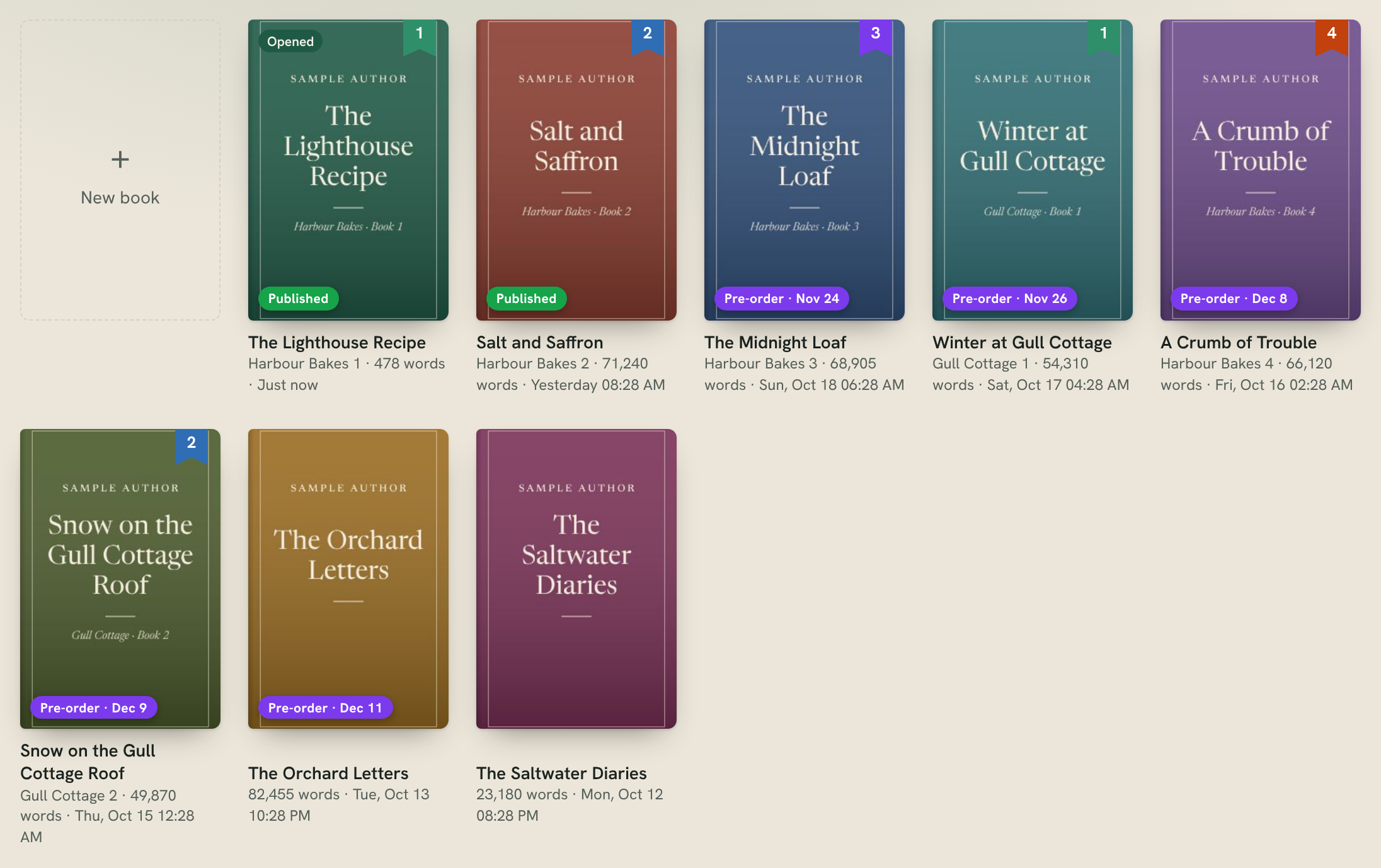
Ebook or print?
Fleuron counts each book as an ebook or a print book. A book whose edition label names a printed form, such as Print edition, Paperback edition, Hardcover edition or Large Print edition, counts as print. Any other book counts as an ebook.
To set the edition, click the edition name beside the book's title at the top of the book window and choose from This book is the…, or click ⋯ on the cover in the Library and choose Edition Label….
Release reminders
When a pre-order is near, the Library shows a reminder at the top:
- When the final file is due within the next week: Final file for (title) due at KDP by (date).
- In release week: Release week!, with the day it goes live and when the final file is due. Click Mark Published once it's out.
- After the release date has passed: the book came out, with Mark Published.
- A pre-order with no date yet, with Set Date….
Each reminder has a Release Plan button. Click ✕ to hide a reminder.
Note: Fleuron counts the final file as due three days (72 hours) before the release date. Stores change their pre-order rules from time to time, so check the current deadline in your KDP dashboard.
The Release Plan
Click Release Plan at the top of the Library to see all your pre-orders, week by week (weeks start on Monday).
For each week you'll see:
- how many ebooks and print books come out that week,
- each book's title, author, release day and the day its final file is due,
- a warning if the week has more books of one kind than your weekly limit.
At the bottom, Weeks with free slots lists the next weeks with room for another release. Pre-orders without a date are listed separately.
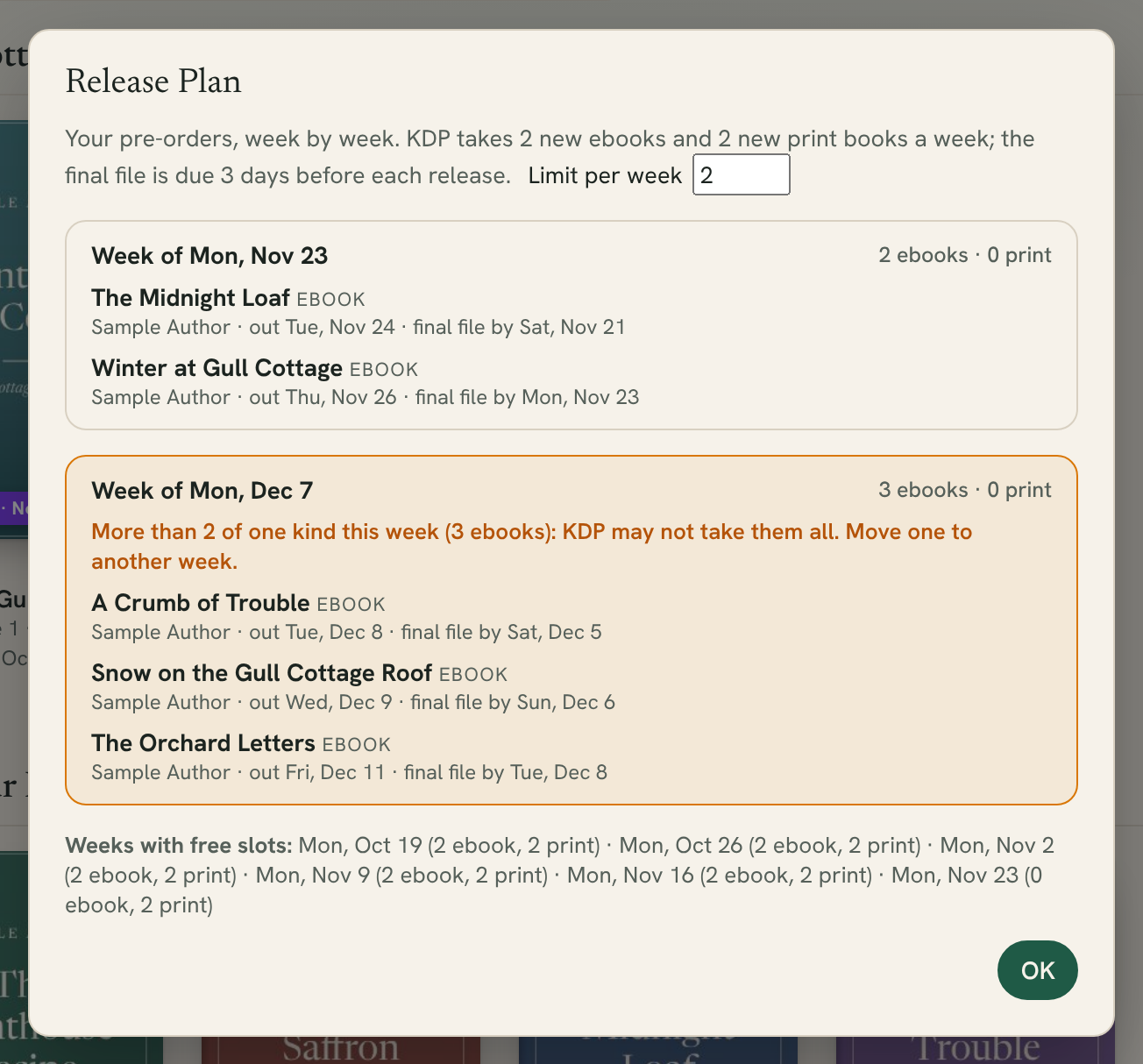
The weekly limit
When this feature was made, KDP took only a few new titles of each kind a week, so authors who release often spread their pre-orders out. Fleuron starts with a limit of 2 ebooks and 2 print books a week.
To change it, type a number in Limit per week at the top of the Release Plan. Fleuron remembers it. Store rules change, so check KDP's current rules and set the limit that applies to you.
Tip: Planning a rapid release? Put each book up for pre-order as soon as you know its date, then check the Release Plan to see which weeks still have room.