Print Overview and Settings
Fleuron makes a print-ready PDF of your paperback from the same book as your ebooks. This article explains the Print Settings window, where you set the trim size, margins and more, and how to check the result.
Opening Print Settings
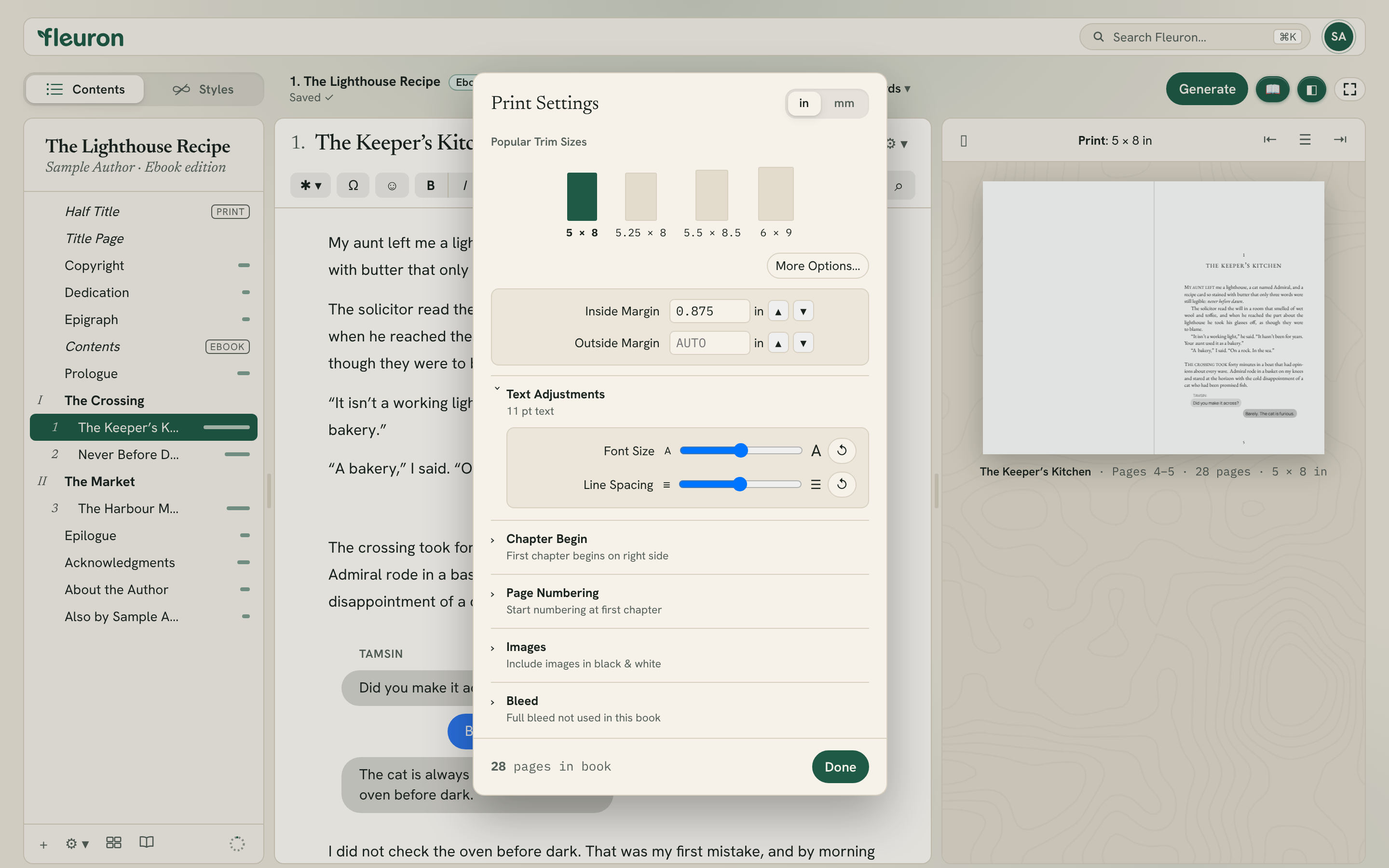
Choose File ▸ Print Settings… (⌘P). You can also click Print Settings… in the Print section of File ▸ Book Settings…, or in the Generate window after clicking Change….
While Print Settings is open, the preview shows the print edition so you can watch each change. The bottom of the window shows how many pages your book has.
Choose in or mm at the top to see sizes in inches or millimetres.
Choosing a trim size
The trim size is the size of the finished book. Click one of the Popular Trim Sizes: 5 × 8, 5.25 × 8, 5.5 × 8.5 or 6 × 9 inches.
For other sizes, click More Options…. You'll find:
- More sizes: 5.06 × 7.81, 5.5 × 8.25 and 6.14 × 9.21 in
- Mass market: 4 × 6, 4.12 × 6.75, 4.25 × 7 and 4.37 × 7 in
- International: A6, 130 × 180 mm, 135 × 205 mm, A5 and 135 × 215 mm
- Full size: 7 × 10, 8 × 10, 8.5 × 11 in and A4
- Large print: 5.5 × 8.5, 6 × 9 and 7 × 10 in, with large text. See Creating a Large Print Edition.
Note: Choosing a new trim size puts the margins, font size and line spacing back to Fleuron's recommended settings for that size.
Margins
- Inside Margin is the margin next to the spine.
- Outside Margin is the margin at the outer edge. Leave it empty (AUTO) and Fleuron picks one to suit the trim size.
Type a size, or use the small arrows to step it up or down.
Tip: Thick books need a wider inside margin so words don't disappear into the spine. KDP asks for more as the page count grows. The Large Print Check tells you whether your inside margin is enough for your page count.
Text Adjustments
Fleuron picks a text size to suit your trim size. The heading of this section shows the size in points.
- Font Size makes the text a little larger or smaller.
- Line Spacing opens up or tightens the space between lines.
Click ↺ beside either one to go back to the recommended setting.
Chapter Begin
Choose First chapter begins on right side or Every chapter begins on right side. Starting every chapter on a right-hand page looks traditional, but adds blank pages.
To set where a single element starts, such as a dedication or an Also By page, select it, click its ⚙ ▾ button and use Begin on (print): Right side, Either side or Left side. You can also use Chapter ▸ Begin On.
Page Numbering
Under Start Numbering at, choose:
- First Chapter: page 1 is the first page of your first chapter, and the pages before it are numbered i, ii, iii.
- Initial Page: numbering starts on the very first page.
Where the numbers appear is set in Styles. See Headers and Footers.
Images
Under Include Images in, choose Black & White or Color. A black-and-white interior is cheaper to print; the print preview shows your pictures in grey when it's set.
Bleed
Bleed is extra picture area past the edge of the page, which the printer trims off, so a picture can run right to the edge.
Under Include Bleed, Only if Necessary adds bleed when the book needs it, such as a full-bleed picture, a full-bleed background or printed edges. Always adds it anyway. The bleed is 0.125 in on the outside edges, as KDP and IngramSpark expect.
Checking your print edition
- Choose Print in the preview's device menu to see your book as two-page spreads. See Previewing Your Book.
- Choose File ▸ Large Print Check… if you're making a large print edition.
- Choose File ▸ Print Cover Template… to get the exact size of your wrap-around cover. See Print Cover Template.
Making the PDF
- Click Generate (or choose File ▸ Generate Books…, ⇧⌘E).
- Click Change…, tick Print, and click Continue.
- Click Generate.
See Generating Books for the whole process.
Print-only and ebook-only content
You can keep a passage, a picture or a whole element out of the print edition, or out of the ebooks. See Ebook-Only and Print-Only Content.