Your Book
Opening a Folder and Series
If your books live in one folder (or a folder per series), you can bring them all into Fleuron in one go. This article explains how Open Folder works, what Fleuron leaves out, and how it puts books into series for you.
Opening a folder
- Choose File ▸ Open Folder…, or click Open Folder… at the top of the Library.
- Choose the folder and click Open.
- Fleuron looks through the folder and the folders inside it, and shows you a list called Import from "your folder".
- Check the ticks. Tick anything that should come in, and untick anything that shouldn't.
- Click Import (the button says how many books, for example Import 6 Books).
The books go into your Library. The books you had open stay open.
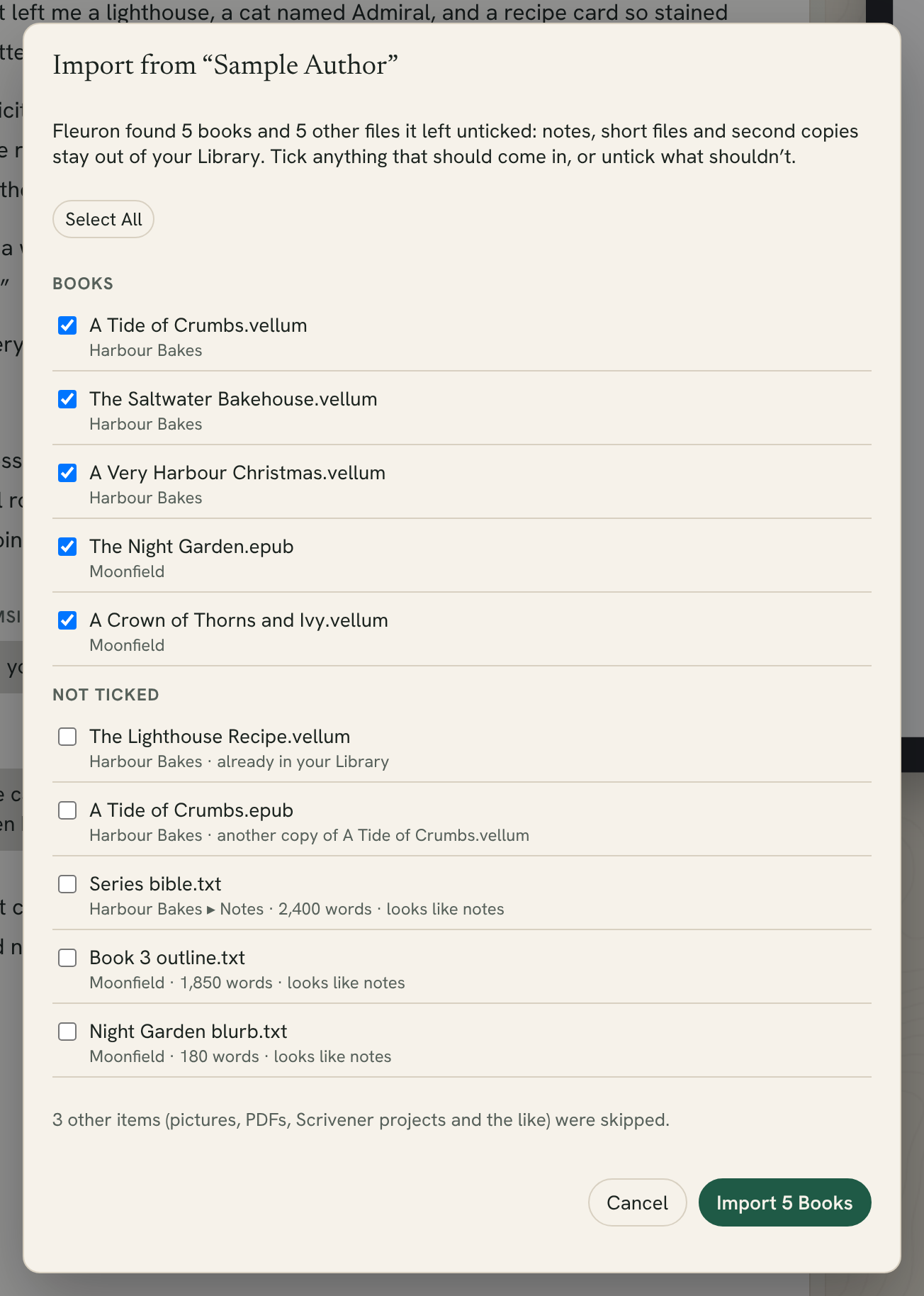
What Fleuron leaves unticked
Fleuron ticks the files that look like books and lists the rest under Not ticked, with the reason beside each one:
- looks like notes: the file name or its folder says notes, outline, synopsis, blurb, bio, research, characters, timeline, marketing and the like,
- only a few words, or no text: files too short to be a book,
- another copy of…: the same book saved in several formats comes in once, from the best file (a Vellum or Fleuron file first, then Word, then the others),
- already in your Library: a book with the same title, language and edition,
- couldn't be read.
You can tick any of these if Fleuron guessed wrong. With three or more ticks to change, a Select All button appears above the list.
Pictures, PDFs and Scrivener projects in the folder are skipped, and the list tells you how many. To bring in a Scrivener project, see Importing Your Manuscript.
Tip: A short story or novella can be under Fleuron's "too short" mark. If it's unticked, just tick it.
Dragging files onto the window
You can also drag books, or a whole folder, from Finder onto the Fleuron window. You see the same list to tick before anything is imported.
Series from file names
Word, Markdown and text files don't say which series a book belongs to, but their names usually do. When you import, Fleuron reads names like these:
- "Iron Compass Book 3 The Copper Key"
- "The Copper Key (Iron Compass Book 3)"
- "Iron Compass #3 - The Copper Key"
- "Iron Compass 03 - The Copper Key"
Each of these comes in as book 3 of the Iron Compass series, with the title "The Copper Key". You can check or change the series in the book's Title Info.
File names help in two more ways:
- A name that says Paperback, Hardcover, Large Print or Print marks that edition, so the ebook and the paperback can sit side by side in your Library.
- A language named in the file name (for example "German" or "Deutsch") helps Fleuron set the book's language when it can't tell from the text.
Sorting books already in your Library
If books are already in your Library with the series still in their titles, Fleuron notices. A note at the top of the Library says how many books look like they're part of a series.
- Click Sort Into Series… on that note.
- Fleuron shows each book with the series and number it read from the title. Untick any it got wrong.
- Click Sort Into Series.
The books move onto their series shelves, and their titles lose the series part. To put books into a series by hand, see Series.