Creating a Large Print Edition
Large print books are read by people with low vision, and stores such as Amazon KDP only accept a book as large print when the text is at least 16 pt. Fleuron's Large Print Check looks at your print settings and can set up a large print edition for you.
Running the Large Print Check
Choose File ▸ Large Print Check….
Fleuron lays out your pages in the background, then shows a list of checks. A tick means the check passed; ! means something to change; i is a reminder.
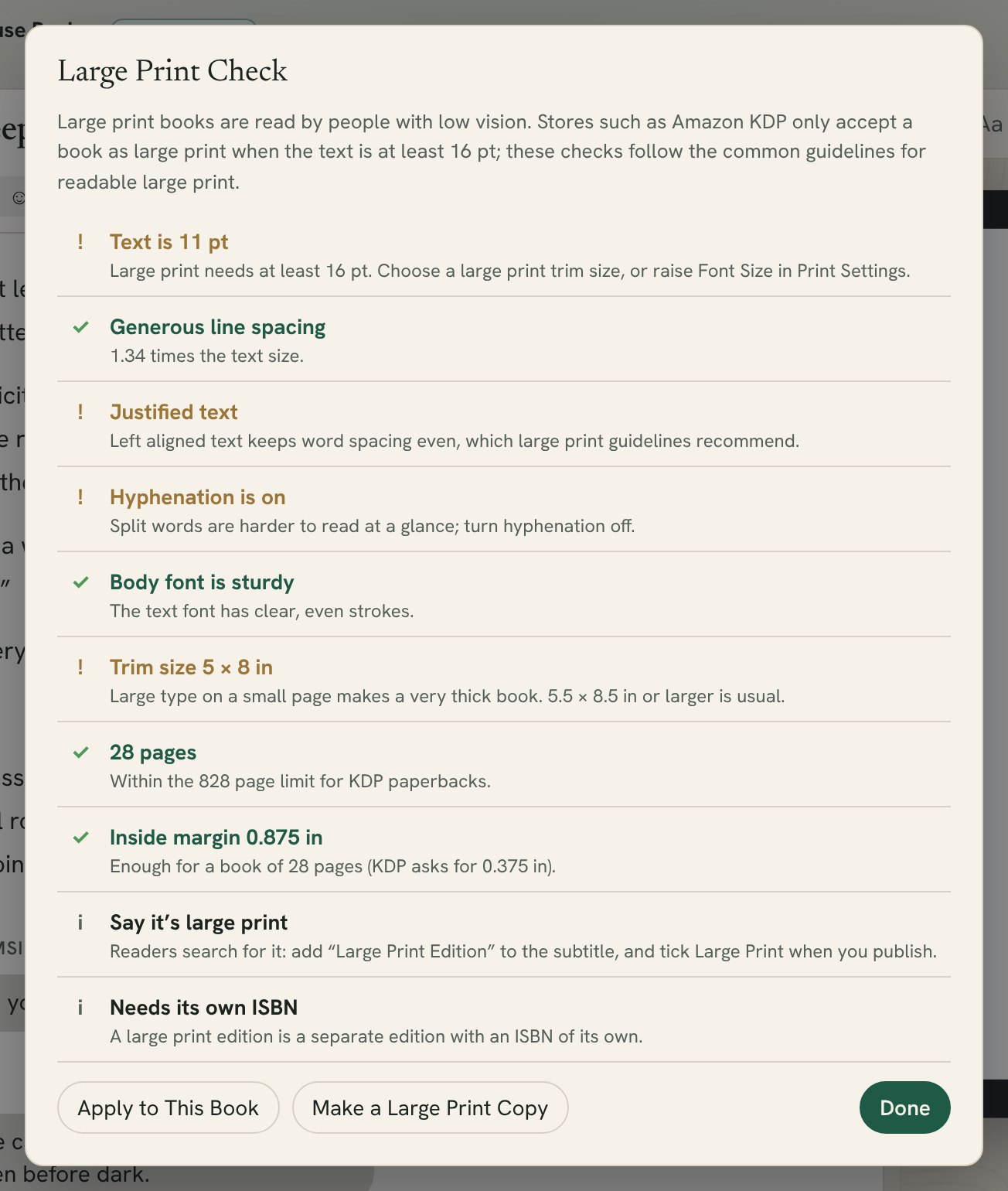
What Fleuron checks
- Text size: at least 16 pt, the size stores ask for.
- Line spacing: 1.3 times the text size or more is easier to follow.
- Ragged right: left-aligned text keeps word spacing even, which large print guidelines recommend over justified text.
- Hyphenation: split words are harder to read at a glance, so it should be off.
- A sturdy body font: thin or decorative fonts are hard to read for people with low vision. A sturdy font such as Atkinson Hyperlegible works well.
- Trim size: large type on a small page makes a very thick book. 5.5 × 8.5 in or larger is usual.
- Page count: KDP paperbacks can have up to 828 pages.
- Inside margin: thicker books need a wider inside margin, and Fleuron tells you what KDP asks for at your page count.
- Labelled as large print: readers search for it, so add "Large Print Edition" to the subtitle.
- Its own ISBN: a large print edition is a separate edition and needs an ISBN of its own.
Two ways to fix it
At the bottom of the window you have two choices.
Apply to This Book changes this book's print settings for large print. Use it when this book is already your large print edition.
Make a Large Print Copy keeps this book as it is and makes a new copy for large print. The copy:
- gets "Large Print Edition" added to its subtitle
- is labelled as the Large Print edition
- starts without an ISBN, so you can give it its own
- opens in its own window, and is added to your Library
Both choices make the same print changes:
- a large print trim size close to your current one (5.5 × 8.5, 6 × 9 or 7 × 10 in)
- text of at least 16 pt, and more line spacing
- left-aligned text with hyphenation off
- if your body font is thin or decorative, Atkinson Hyperlegible for the body text
Run the check again afterwards to see what’s left, such as the page count and inside margin.
Note: A large print copy is a separate book. Changes you make to your original later don't carry over to it.
Finishing your large print edition
- Give the copy its own ISBN in Title Info. See Title, Author and Book Settings.
- Check the pages in the print preview. See Previewing Your Book.
- Make a cover for the new page count with File ▸ Print Cover Template…. A large print book is thicker, so its spine is wider. See Print Cover Template.
- When you publish, tick the store's large print option, such as KDP's Large Print box.
Tip: For the easiest reading, try one of the Accessible book styles, such as Legible. See Applying Styles.