Your Book
Importing Your Manuscript
You don't have to start from a blank page. This article shows how to bring a finished or half-finished manuscript into Fleuron, how to prepare it so it comes in cleanly, and how to check the result.
What Fleuron can import
Fleuron reads these kinds of files:
- Word documents (.docx)
- Scrivener projects (.scriv, compressed into a .zip first; see below)
- Vellum books (.vellum)
- EPUB ebooks (.epub)
- OpenDocument text (.odt)
- Rich Text (.rtf)
- Markdown (.md)
- Web pages (.html)
- Plain text (.txt)
Fleuron recognises chapters, parts, scene breaks, footnotes, endnotes, lists, pictures, verse, block quotes and text conversations, so most of your formatting comes across.
Note: Older Word files (.doc) and Pages documents aren't on the list. Open them in Word or Pages and save them as .docx first.
Opening a manuscript
- Choose File ▸ Open… (⌘O). In the Library, you can also click Open… at the top of the window.
- Choose your file. You can pick several files at once.
- Click Open.
What happens next depends on what you chose:
- One manuscript: Fleuron adds it to your Library and opens it straight away.
- Several manuscripts: Fleuron adds them all to your Library and shows you a list of what came in. Click a cover to open a book.
- A Fleuron book (.fleuron): it opens as it is.
You can also drag files, or a whole folder, onto the Fleuron window. Fleuron shows you a list of what it found first, so you can untick anything that isn't a book. See Opening a Folder and Series.
If the book is already in your Library
When you import a book with the same title as one already in your Library, Fleuron asks what to do:
- Keep the one in the Library leaves your Library as it is.
- Replace it with this file brings in the new text. The book keeps its series, author and history, and Fleuron saves the old text in Version History first.
- Keep both adds the file as a second book.
Preparing a Word manuscript
A few minutes of tidying before you import saves a lot of fixing afterwards. You can read these tips inside Fleuron too, with File ▸ Import Tips….
- Chapters: give each chapter title Word's Heading 1 style. Fleuron starts a new chapter at each one. Use Heading 2 to Heading 6 for subheads inside a chapter.
- Chapter numbers: you don't need to type them. Fleuron numbers chapters for you, so the numbers stay right when you move or add chapters.
- Scene breaks: put
***or#on a line of its own, or leave one empty line. - Spacing: don't press Enter twice between paragraphs, and don't indent with Tab or spaces. Fleuron reads empty lines as scene breaks, and sets indents and spacing from your book's style.
- Italics and bold: use real italic and bold. Avoid underlining for emphasis, because in ebooks underlined words look like links.
- Notes and pictures: Word footnotes and endnotes come across as notes. Put pictures in line with the text (not floating or in text boxes).
- Lists and quotes: use Word's own bulleted and numbered lists rather than typing "1." or "-". Indented blocks become block quotes.
- Text messages: write each message on its own line as "Name: message". Fleuron can turn these into chat bubbles.
- Front and back matter: leave out the title page, copyright page and contents. Fleuron makes those for you.
Tip: Headings such as "Prologue", "Epilogue", "Foreword", "Dedication", "Acknowledgments", "About the Author" and "Also By" come in as those kinds of pages, not as ordinary chapters. See Elements of Your Book.
If your manuscript uses Word's Title, Subtitle and Author styles at the top, Fleuron uses them for the book's title page details instead of making them a chapter.
What Fleuron adds for you
A freshly imported book gets:
- a Title Page, built from the title and author,
- a Copyright page,
- a Table of Contents,
- an Endnotes page at the end, if your manuscript has endnotes.
Fleuron takes the title from the file (or its name), works out the book's language from the text, and reads a series name and number from the file name when it has one, such as "Iron Compass Book 3". You can change any of this in Title, Author and Book Settings.
Other kinds of files
Plain text, Markdown, RTF, OpenDocument and HTML. When the file has no headings, lines such as "Chapter 12", "Part Two" or "Prologue" start new chapters. In Markdown, # headings start chapters; if there is only one # heading (the book's title) and several ## headings, the ## headings become the chapters.
EPUB. Fleuron brings in the chapters and the cover, and skips the ebook's own cover page, title page and contents, because it makes its own.
Vellum. Open the .vellum file with File ▸ Open…. Fleuron brings in your elements, text and pictures, and picks the Fleuron style closest to the one you used in Vellum. If something can't be brought over exactly, Fleuron lists it after the import. TIFF pictures are one example: convert them to JPEG or PNG and add them again.
Importing a Scrivener project
Fleuron brings in your Draft (or Manuscript) folder in binder order. Folders become chapters, the documents inside them become scenes with a scene break between them, and a folder of folders becomes a part. Synopses, status and labels come too. Documents you set not to include in compile are left out, and front matter, research and notes stay in Scrivener.
- Choose File ▸ Import Scrivener Project… and click Choose Project…. (Or simply choose File ▸ Open….)
- Choose your .scriv project. A .zip of the project works too.
You can also drag the .scriv project onto Fleuron's window.
Checking your import
After you import, have a look through the book with Fleuron's import check.
- Open the book.
- Choose File ▸ Check Import….
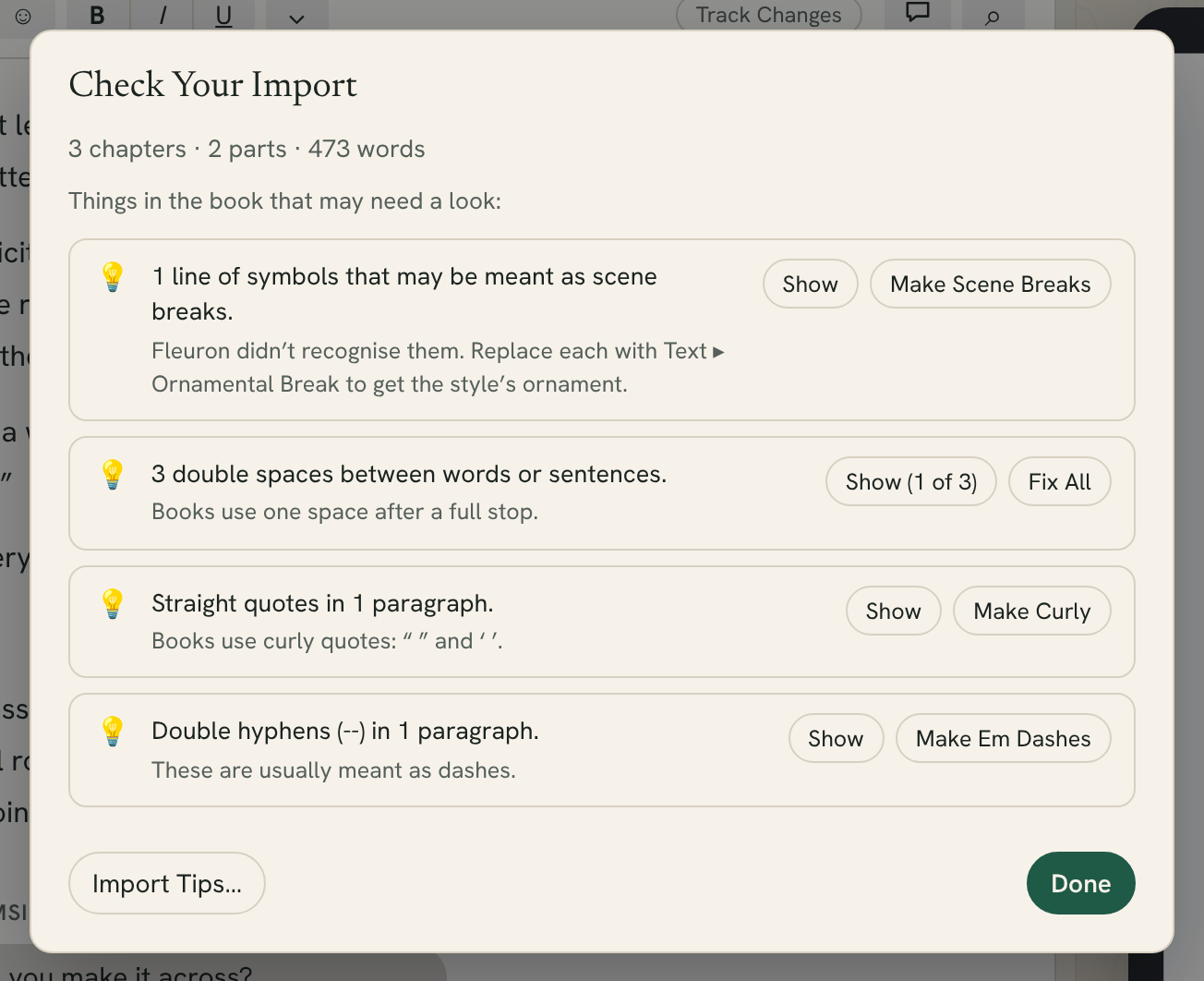
The Check Your Import window lists anything that usually means the manuscript needs a fix. For example:
- no chapter breaks at all, or chapters much longer or shorter than the rest,
- lines that look like chapter titles but didn't start a chapter,
- a second title page from your manuscript,
- typed list numbers or bullets,
- lines of symbols that may be meant as scene breaks,
- far more scene breaks than usual (often blank lines between paragraphs),
- double spaces, straight quotes, double hyphens and underlined text,
- pictures without a description,
- text conversations that could become chat bubbles.
Click Show to jump to an example. Many items have a one-click fix, such as Start Chapters There, Make Scene Breaks, Fix All, Make Curly, Make Em Dashes, Make Italic or Make Chat Bubbles…. When nothing needs fixing, the window says so.
Tip: If your Word chapters start with a plain "Chapter 12" line instead of the Heading 1 style, the check finds those lines and Start Chapters There splits the book at each one.
Reimporting a new version
If you keep editing in Word, you can bring in the new version without losing what you added in Fleuron.
- Open the book in Fleuron.
- Choose File ▸ Reimport Word File….
- Choose the new version of your manuscript and confirm.
The chapters that came from your last import are replaced by the new ones. Everything you added in Fleuron stays where it was, such as the title page, copyright, Also By, About the Author, parts and pictures. A chapter with the same title keeps its settings. Fleuron saves a copy of the book in Version History first, so you can go back.
Reimport works with Word, EPUB, OpenDocument, RTF, Markdown, HTML and text files.
Next time, File ▸ Reimport Immediately reads the same file again, without asking you to choose it.
Note: Changes you made in Fleuron to the chapters that get replaced are lost (they are still in Version History). Make text changes in one place: either in Word and reimport, or in Fleuron from then on.