Library and Series
Fetch from Amazon
If a book is already on sale on Amazon, Fleuron can read its public listing and fill in the book's details for you: title, subtitle, series, author, description, cover and more. This is handy when you bring older books into Fleuron. This article explains how it works and what to do if it doesn't.
Note: Fetch from Amazon is a beta feature. Amazon doesn't offer an official way to do this, so it reads the same page any reader sees. It can stop working when Amazon changes its pages, and some details may not be found.
Fetching a book's details
- Open the book in Fleuron.
- Choose File ▸ Book Properties (Title Info)… and click the Publishing tab.
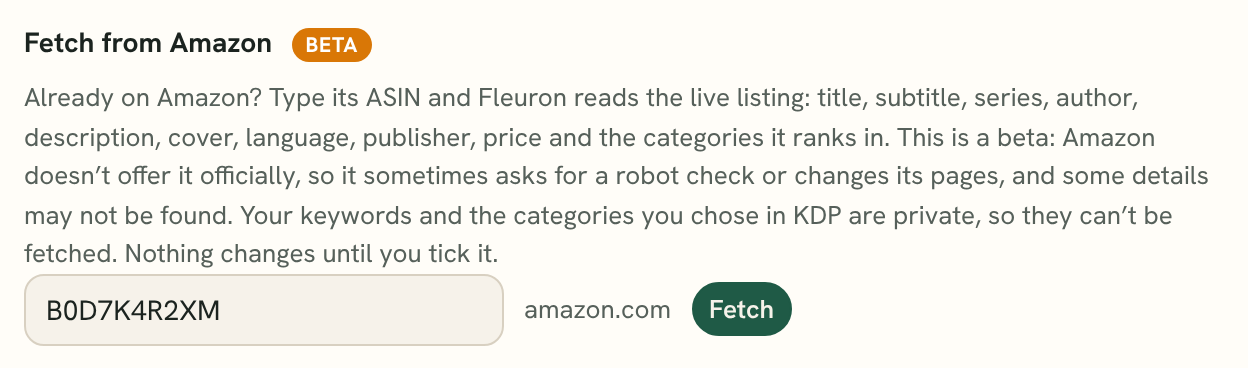
- Under Fetch from Amazon, type the book's ASIN (10 letters and numbers, like B0D1QZ8Z2Y), or paste its Amazon link. If you've already added the ASIN in Title Info, it's filled in for you.
- Click Fetch.
Fleuron reads the listing from the Amazon store shown beside the box, such as amazon.com. You need an internet connection.
Choosing what comes in
Fleuron shows what it found in two columns: On Amazon and In Fleuron now.
It can find:
- Book Title, Subtitle, Series and Series number
- Author
- Description, with its formatting
- Language and Publisher
- Ebook price on the page
- Ranking categories
- Cover image, at the largest size Amazon has, with its size in pixels
Anything Fleuron couldn't find is marked not found. Where the listing says something different from your book, the line is marked different.
Nothing changes until you choose:
- Tick each line you want to bring in. Fleuron ticks some for you: lines where your book has nothing yet, and lines where Amazon says something different. The cover, price and categories are ticked only when your book has none yet.
- Click Bring In Ticked.
Fleuron also keeps the ASIN with the book, in Title Info under In the stores, so your store links use it.
Below the list, Fleuron may also show the publication date and page count from the listing, for your information.
Tip: Check the price before you bring it in. The price on the page may be a sale price, or the price in another store.
What can't be fetched
- Keywords and the categories you chose in KDP are private to your KDP account. They're never on the listing, so Fleuron can't read them.
- Ranking categories are the categories your book ranks in on Amazon. They may not be the ones you chose in KDP.
Type your keywords and categories in the Store Listing instead. See Store Listing and Royalty Calculator.
Choosing the Amazon store
Fleuron fetches from the Amazon store set for the book's Kindle links. To change it:
- Choose File ▸ Book Settings….
- Under Store links, choose from Amazon store for Kindle links.
The book must be on sale in that store for its listing to be found.
If it doesn't work
- Amazon answered with a robot check instead of the book page. Amazon sometimes asks for a robot check. Try again in a few minutes, or copy the details from the listing by hand.
- Fleuron couldn't find the book's details on that page. Amazon may have changed its pages, or the ASIN isn't a live book in this store.
- Amazon has no book with that ASIN in this store. Check the ASIN, and the store in Book Settings.
- Amazon didn't answer. Try again in a while.
Fleuron fetches one page each time you click Fetch, and only from Amazon.